 Shahid Latif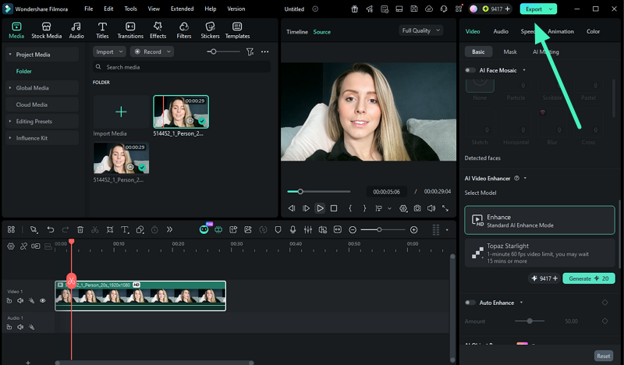
A content creator opens an old project file, only to find blurry footage and pixelated clips that no longer meet today’s quality standards. Instead of reshooting everything, they turn to an AI video enhancer to fix the issue quickly. With advanced algorithms, these tools upscale resolution, sharpen details, and restore clarity in minutes.
As video quality expectations continue to rise across platforms, relying on AI has become a smarter solution. This article explores how an AI video enhancer works and why it matters. It also discusses how you can use it to transform low-quality videos into sharp, professional-looking content with minimal effort.
Part 1. AI Video Enhancer Benefits: Why Use AI Video Upscaler Today
As video standards continue to evolve, using a video quality enhancer has become essential for achieving sharp, professional results without complex editing. Here are some of the reasons why people are drawn more towards this tool:
- Restore Old and Blurry Footage: AI tools can revive low-quality or aged videos by sharpening details and reducing grain. This makes old memories or archived content look clearer and more watchable on modern screens.
- Smart Video Upscaling: An AI video upscaler increases resolution from SD to HD or even 4K without stretching pixels. It intelligently reconstructs details, ensuring the output looks natural and high-quality.
- Automatic Noise Reduction: AI detects unwanted noise caused by low light or compression and removes it efficiently. This results in smoother visuals while preserving important textures and details.
- Enhanced Color and Brightness: AI enhancement tools automatically adjust brightness, contrast, and color balance. This helps transform dull footage into vibrant, visually appealing videos.
- Faster Editing Workflow: Manual editing can take hours, but AI simplifies the process with automation. Users can enhance multiple videos quickly without needing advanced editing skills.
Part 2. AI Video Enhancer Desktop: Filmora Video Quality Enhancer Overview
When it comes to improving video clarity without complex editing, Wondershare Filmora offers a reliable and beginner-friendly solution. Designed with both simplicity and performance in mind, Filmora integrates advanced AI features that enhance videos in just a few clicks. It’s built-in AI video upscaler intelligently increases resolution while preserving natural details, ensuring footage looks sharp and professional.
Beyond upscaling, this video editor enhances color balance, reduces noise, and refines textures automatically. Whether you are restoring old clips or upgrading recent recordings, Filmora provides a smooth workflow that saves time while delivering consistent, high-quality visual results.
Key Features Offered By Filmora
- Instant Enhancement: Filmora uses AI to automatically enhance video quality in seconds, reducing the need for manual adjustments and speeding up your workflow.
- Topaz Starlight Enhancement: Integrated Topaz-powered enhancement technology helps recover fine details and improve clarity, especially in low-quality or compressed footage.
- Multiple Format Support: The tool supports a wide range of video formats, making it easy to import, edit, and export files without compatibility issues.
- Consistent Quality Across Footage: Its AI ensures uniform enhancements across all frames, maintaining stable brightness, color, and sharpness throughout the entire video.
Steps to Enhance Video Using Filmora AI Video Enhancer
After understanding its powerful features, it’s time to see how an AI video enhancer works in real use. Provided below is the step-by-step guide on how to use this feature on your desktop:
Step 1. Create a New Filmora Project
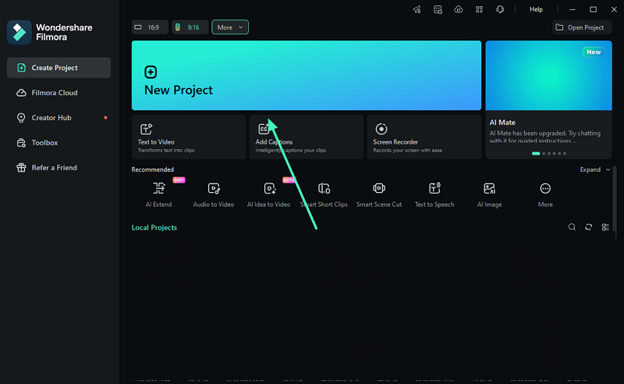
Start by opening Filmora on your device and clicking on the “New Project” option from the homepage. Then, upload your video into the interface and place it onto the timeline to begin editing.
Step 2. Select AI Enhancer
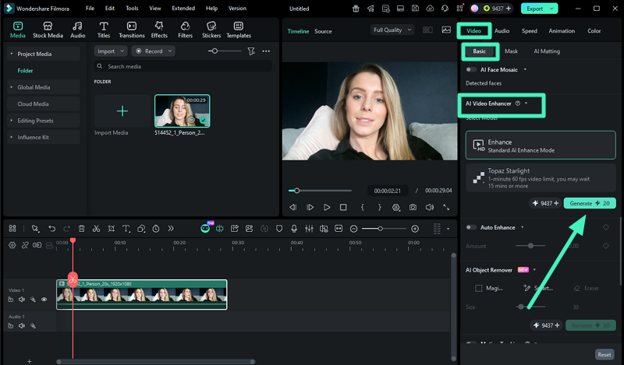
After adding the video, move to the right-side properties panel and open the “Video” section. From there, click on “Basic,” find the “AI Video Enhancer,” and hit the “Generate” button to start the enhancement process while tracking progress in the top menu bar.
Step 3. Preview and Export the Video
Once the enhancement is finished, review the improved video in the preview window. If satisfied with the results, click “Export” to save the final version to your device.
Part 3. AI Video Enhancer App: Filmora Mobile Video Quality Enhancer Tools
When it comes to enhancing videos directly on your smartphone, the Filmora App [iOS/Android] provides a powerful yet easy-to-use solution. Designed for creators who want quick results without complex editing, the app integrates advanced AI technologies to improve visuals in just a few taps. As a modern video quality enhancer, Filmora App combines intelligent upscaling, motion smoothing, and automatic optimization to deliver sharp and professional-looking videos.
Key Features
- AI Ultra HD Upscaling: Enhances video resolution to HD or 4K while preserving fine details and sharpness.
- Optical Flow Motion Smoothing: Improves frame transitions and creates fluid, jitter-free playback in dynamic scenes.
- Auto Enhance Adjustment: Automatically optimizes brightness, contrast, and color with adjustable intensity controls.
- Real-Time Preview: Allows users to instantly view changes before exporting the final video.
- Apply to All Functions: Applies selected enhancements uniformly across the entire video for consistent quality.
Comprehensive Steps to Enhance Video Using Filmora App
As discussed, users can conveniently upscale their footage right from their smartphone using the Filmora App. Follow the steps mentioned below to learn how to use this AI video upscaler app:
Step 1. Import Video Choose AI Enhancer
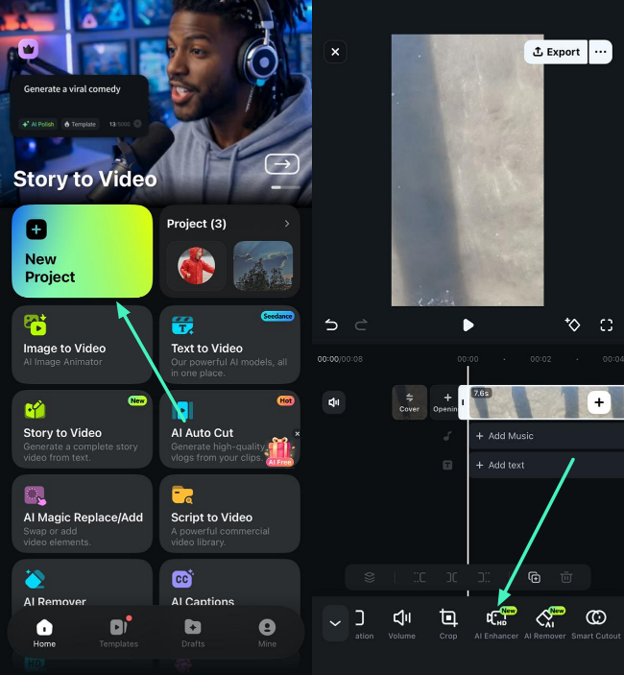
After accessing the app on your phone, locate the “New Project” option and tap on it. Now, import the video to the app’s interface. Once the video is imported, locate the “AI Enhancer” option and tap on it.
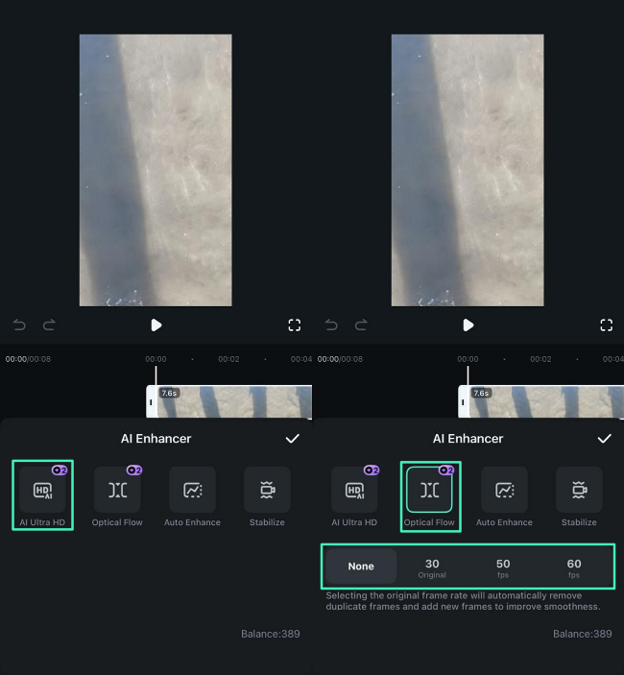
Step 2. Enable Ultra HD and Optical Flow
Next, locate the “Ultra HD” feature and tap on it to enable it. You can also opt for “Optical Flow” enhancement and select the “Frame Rates” from the options provided.
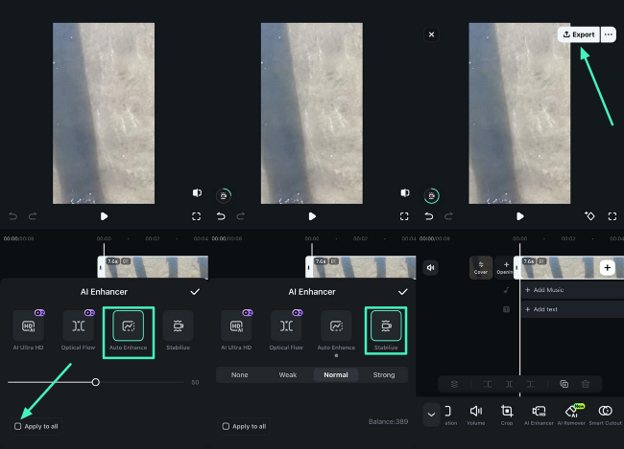
Step 3. Choose Auto Enhance and Export
Tap on the “Auto Enhance” feature to enable it and adjust the intensity accordingly. Press “Apply to All” to apply the enhancement to the entire clip. You can also opt for “Stabilize” to remove shakiness. Once done, press “Export” to save the results to your phone.
Conclusion
Using an AI video enhancer is one of the most efficient ways to improve video quality, restore details, and upscale footage effortlessly. With advanced automation and intelligent processing, these tools save time while delivering professional results. Among the available options, Filmora stands out for its ease of use, powerful features, and consistent output, making it a reliable choice for beginners and creators alike.
Note to the readers: This content is created independently for informational purposes only and does not represent the views of any official publishing platform.