 Do Son
Microsoft’s New Outlook for Windows offers a modern interface, better cloud integration (with Microsoft 365), and a streamlined user experience. If you’re switching to New Outlook, you also want to transfer your existing mailbox data, including emails, attachments, contacts, calendars, and other items.
If your mailbox data is stored in OST file, you cannot directly import it into New Outlook. This is because OST file is linked to the specific email account that created it and cannot be opened or imported into any other Outlook account.
To access the mailbox data of an OST file in New Outlook, you first need to convert the OST file into Personal Storage Table (PST) file. If your profile is accessible, you can use built-in Import and Export Wizard in Classic Outlook to convert the mailbox data to PST file. If the file is orphaned or inaccessible, you need to use a specialized tool to convert OST file to PST. Once the conversion is done, you can import the PST file into New Outlook.
In this article, we will explain the complete process to import the OST file into New Outlook.
How to Import the OST File into New Outlook?
As mentioned above, you cannot directly import the OST file into New Outlook. To import the data file, you first need to convert it into PST format. Follow the methods mentioned below.
- Use Import/Export Feature in Classic Outlook
You can use the Import/Export Wizard in Classic Outlook to export your mailbox items to PST file. Follow the steps below to use this method:
Note: This method will work when the original profile and OST file are accessible.
- Open Outlook.
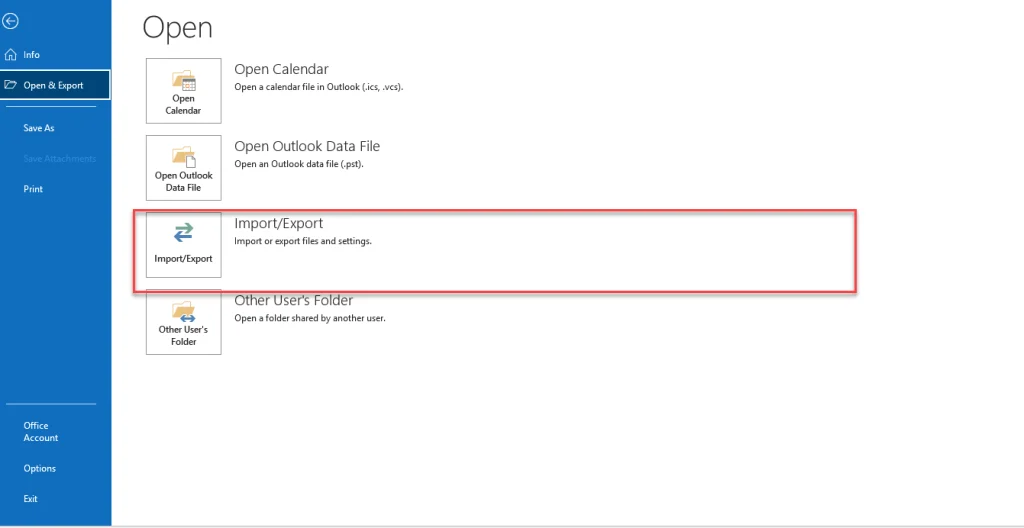
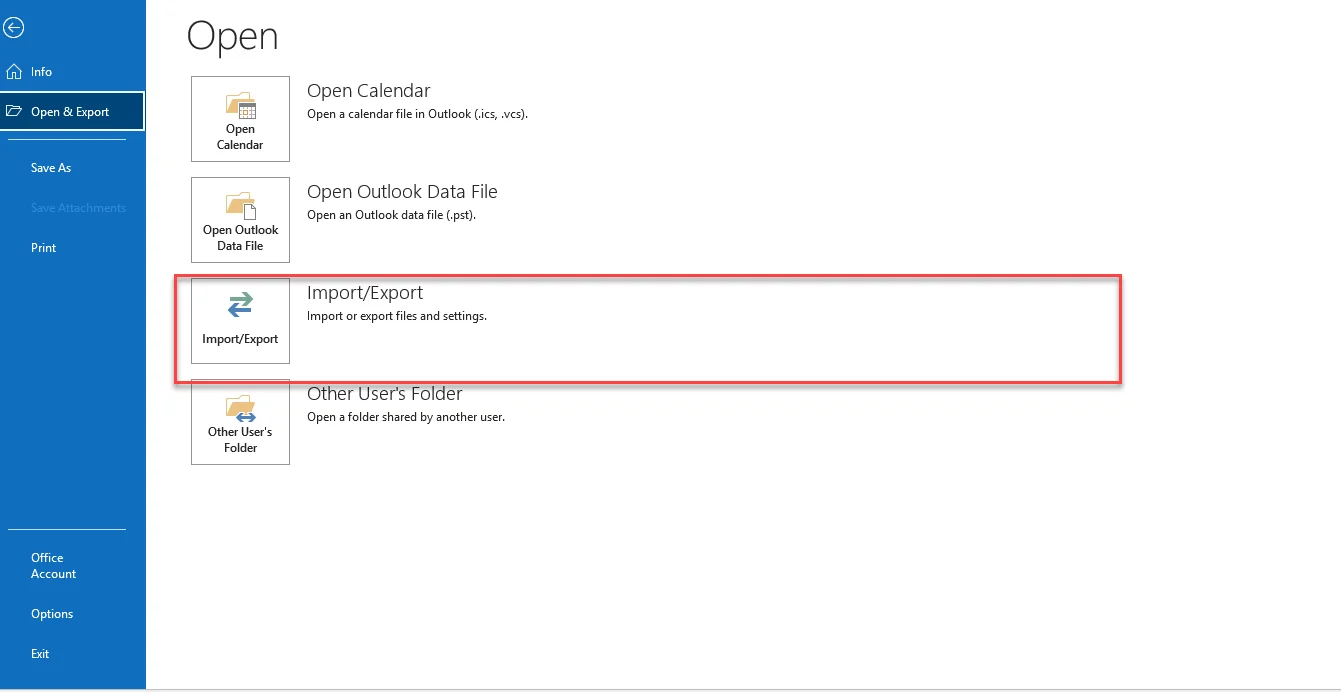
- Click on File > Open & Export > Export to a file. Click Next.
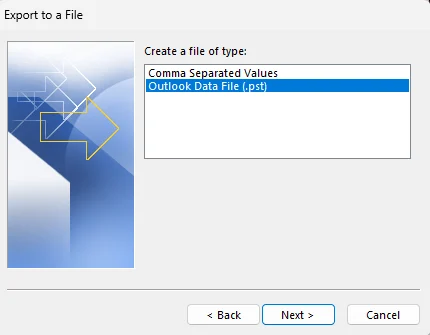
- Choose Outlook Data File (.pst). Click Next.
- Choose the email account or specific folders you want to export and click Next.
- Click Browse to choose a local folder on your computer to save the file.
- You can optionally add a password or leave it blank. Click Finish.
- Use a Professional OST to PST Converter Tool
If the OST file becomes orphaned, inaccessible, or disconnected from the original Exchange Server, Microsoft 365, Outlook.com, or IMAP account, you need use a professional OST to PST conversion tool.
One option is the Online OST Converter by Stellar – a web-based OST to PST conversion service. It allows you to convert OST file to PST without installing any software. This online converter features a simple interface where you can upload your OST file, convert it, and download the resulting PST file. It comes with two plans: Free (to convert up to 500 MB OST file) and Premium (to convert up to 5 GB file).
Another option is to use a desktop-based OST to PST converter tool, such as Stellar Converter for OST. It offers a more comprehensive features and can convert orphaned, encrypted, or inaccessible OST files without any file size limitations. It also allows users to preview mailbox items after conversion. It supports saving the mailbox data in multiple file formats, such as PST, MSG, EML, etc.
After converting the OST file to PST, you can open or import it into New Outlook. Follow the steps below:
- Open New Outlook.
- Go to Settings >Data files. Then, Import.
- Under Outlook Data File (.pst), choose Get started and then Select file.
- Browse to the location where the PST file is saved, select the file, and selectOpen.
- Under Folders to import from, select the folder you want to import, and then click Next.
- Select one of the options to manage duplicates and then click
- Choose a destination folder and select the mailbox from the Account list.
- Select the folder where you want to import the items.
- Select
Once the import is finished, you can access your emails, contacts, and other mailbox items in New Outlook.
Conclusion
New Outlook for Windows does not support direct import of OST files. However, you can convert the OST file to Outlook importable PST format. If the original Outlook profile is available, you can use Classic Outlook’s built-in Import/Export Wizard to export OST data to PST file. For orphaned or inaccessible OST files, you can use a professional OST to PST converter tool, such as Stellar Converter for OST or Stellar Online OST Converter Service. Once the file is converted, you can import it into New Outlook.