 Do Son
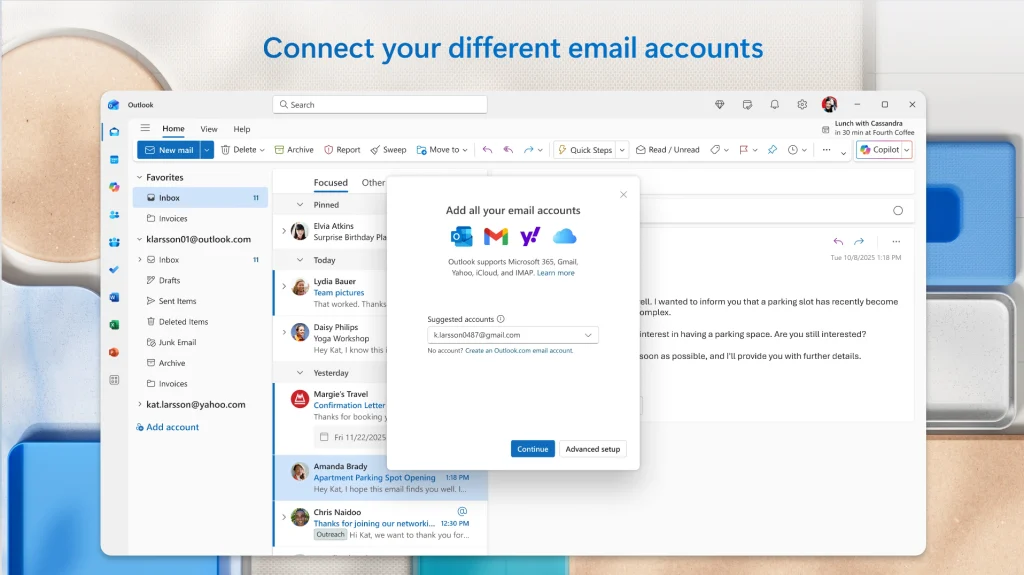
Microsoft plans to distribute visual refinements to classic Outlook for Windows starting in mid-November. Specifically, the incoming classic Outlook interface update harmonizes icon sets, padding, and alignments across email and calendar modules. Furthermore, engineers are reinstating the in-app What’s New announcement modal following extensive community feedback. Consequently, enterprise users can track iterative interface modifications effortlessly without disrupting established daily workflows.
Harmonizing Desktop and Cross-Platform Aesthetics
Primarily, this visual refresh aligns desktop clients with modern design standards across Microsoft 365. Over time, visual discrepancies emerged between web, macOS, and native Windows builds. To eliminate these inconsistencies, designers overhauled familiar navigation icons and adjusted structural padding throughout the window pane.
Importantly, the classic desktop architecture retains all traditional workflows and administrative capabilities. Operators can manage complex email folders and calendar appointments without retraining. However, Microsoft will distribute these improvements in staged geographic waves. Therefore, individual enterprise workstations may observe visual adjustments on slightly differing deployment schedules.
Restoring the What’s New Information Window
Simultaneously, Microsoft addressed user demands for greater transparency regarding routine software changes. In response to customer requests, developers restored the dedicated What’s New notification pane. By default, this helpful summary panel appears once each month after substantial updates.
Users who wish to explore recent improvements can dismiss the modal or summon it manually from the ribbon. Detailed deployment guidance appears in the Microsoft documentation covering what is new in classic Outlook for Windows.
Enterprise Policy and Group Policy Controls
Additionally, Microsoft provided comprehensive administrative controls for organizational IT teams. System administrators can deactivate the notification dialog via standardized Windows Registry keys or Group Policy objects. Once disabled, the client suppresses update notifications permanently on managed enterprise endpoints. Ultimately, these subtle visual adjustments modernize daily communication while respecting strict enterprise management requirements.
Support Our Threat Intelligence
Find our tech and OS security coverage helpful? Support our work today and unlock a 100% ad-free reading experience!
 Buy Me a Coffee
