 Do Son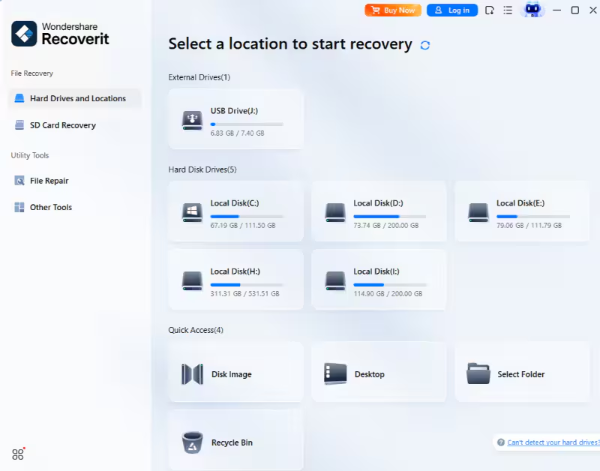
TL;DR: When files disappear, the biggest mistake is to keep using the device. Stop writing new data, check the easiest recovery options first, then use a reliable recovery tool if needed. Fast action protects your chances of getting the file back.
Why safe recovery matters
Data recovery tools is not just about getting a file back. It is about recovering it without making the loss worse. Every new download, app install, photo sync, or exported video can overwrite deleted file data and reduce the chance of recovery. That is why the first rule is simple: stop using the device as soon as you notice the loss.
For Mac and Windows users alike, the recovery process is most effective when you act early, stay calm, and avoid random fixes. The less the drive is touched, the better the odds.
What to do first after losing a file
- Stop saving new files to the same drive.
- Check Trash or Recycle Bin.
- Look for cloud sync copies.
- Review app autosave or version history.
- Use recovery software before trying risky manual methods.
Recommended tool for safe recovery
If you want a guided method instead of guessing in Terminal or registry tools, Recoverit data recovery is a practical choice. It helps scan for recoverable files, preview results, and restore data to a safe location. For everyday users, that is usually the cleanest balance of speed and safety.
3-step recovery tutorial
Step 1: Freeze activity on the affected device
Action: Stop downloads, installs, and new saves immediately. If the file was on an internal drive, avoid running heavy apps.
Result: You reduce the chance of overwriting deleted data blocks.
Purpose: Preserve the best possible recovery window.
Step 2: Scan the original drive with recovery software
Action: Open Recoverit, select the original drive or folder, and run a deep scan.
Result: The software searches for deleted file records and recoverable fragments.
Purpose: Find the original file before more data is written over it.
Step 3: Preview and recover to a different location
Action: Preview the file, verify it is the right one, and save it to another drive or folder.
Result: You restore the file without risking the same disk space again.
Purpose: Prevent additional damage and avoid overwriting other recoverable files.

Common mistakes that cause more damage
| Mistake | Why it hurts | Better move |
| Installing recovery tools on the same drive | Can overwrite the deleted file | Install on another drive |
| Saving recovered files back to the original folder | Creates more overwrite risk | Use an external drive |
| Trying multiple random fixes first | Increases disk activity | Scan once, then recover carefully |
When manual recovery is not enough
Manual methods work best for obvious cases like Trash, Recycle Bin or cloud history. If the file is truly deleted, the device is still in use, or the drive has already been written to, a recovery tool is the safer route. That is where Recoverit fits well: it keeps the process simple and reduces the risk of making things worse.
How to avoid future loss
- Keep a backup habit, not just a recovery habit.
- Turn on cloud sync for important folders.
- Use Time Machine or another automatic backup tool on Mac.
- Store critical files in two places.
The best recovery strategy is prevention. Backup is cheaper than panic.
Conclusion
Data recovery basics are simple: stop writing new data, check easy recovery sources, and use a reliable tool before the drive gets overwritten. If you want a clean, low-risk path, Recoverit is a solid option for restoring lost files without causing more damage.