 Do Son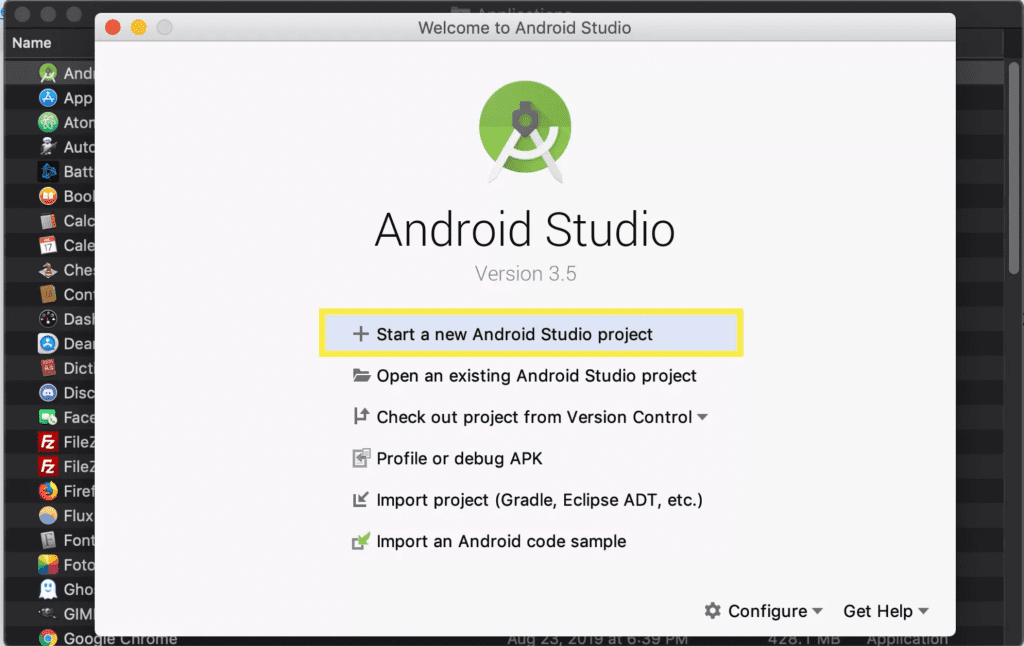
Our smartphones have become a place where we play, work, and socialize. According to Statista, global app usage reached 230 billion downloads in 2021. The popularity of mobile applications has risen over the last few years, especially during and after the pandemic. Proportionally, the need to hire mobile app developers increased as well.
Android SDK is a software development kit for Android Studio. It helps to write code, run testing and debugging, evaluate the application and results in real-time. To put it simply, SDK is a set of tools developers use to create applications for specific platforms.
This development kit includes a number of packages with tools used to create and test an app. They vary depending on the Android version we’re developing applications for.
Basic packages include:
- Android SDK Build-Tools like Zipalign and Аpksigner used for signing apk.
- Android SDK Platform-Tools (Android Debugging Bridge, Fastboot, and Systrace) “responsible” for interaction with the Android platform.
- Android Emulator for testing applications and trying out the features of the latest versions of Android.
Even though Android SDK is used for creating Android applications, it can be installed on Windows, macOS, Chrome OS, and Linux.
How to Install Android SDK in Android Studio
Android SDK is mainly used in Android Studio, a development environment for creating apps. The toolset can be used with or without the Studio; however, the first option is much easier. Installing the Studio will automatically install the development tools (code editor, compilator, and emulator) and the means for updating them.
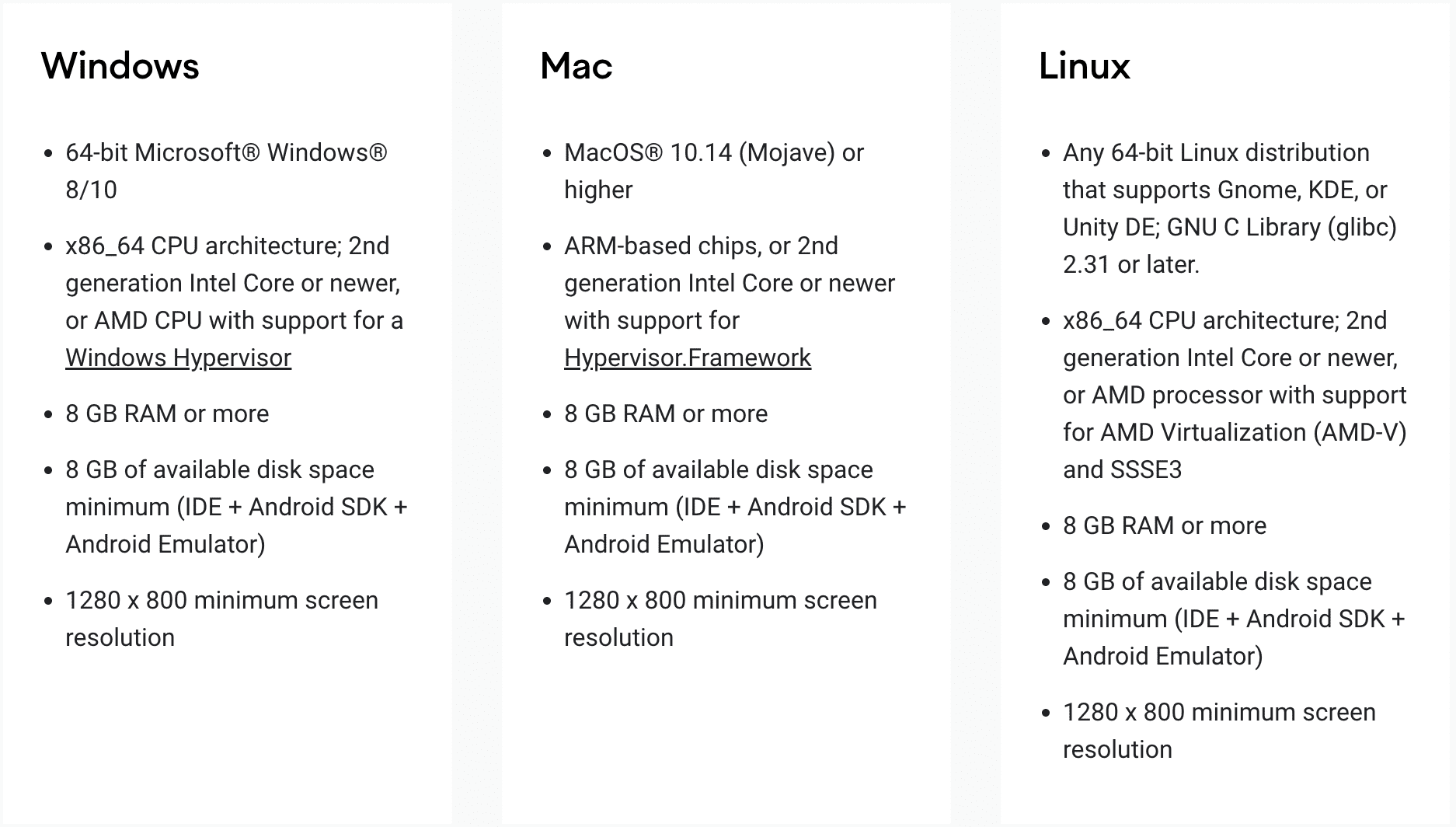
The Studio can be downloaded for free from the Google developers page. It works on most operating systems, including Windows and Mac, but some system requirements should be complied with.
There are a number of download options for installing: in different sizes and formats, including installing the Command Line tools only.
The first step is agreeing with the Terms & Conditions and choosing the relevant version — the DMG file for Mac or the EXE file for Windows.
After you’ve clicked on the file or found it in your apps through the taskbar, the system will ask you to make changes on your computer and warn you about possible viruses. From this point, you’ll have to follow the installation procedure and open the Studio on your computer.
After the application is installed, you can start a new project, configuring the type of project and devices it will be used on.

Installing Android SDK Without Android Studio
Installing Android SDK within the framework of Android Studio is an easy option. Still, it’s not the only way to get the needed development tools. Sometimes, the Studio can be too “heavy” for some computers, or the system doesn’t meet all the requirements (for example, it lacks storage or resolution). In such situations, the toolset should be installed manually.
The main prerequisite for installing SDK is downloading the Java Development Kit responsible for the graphical display of the source code. Since Java was the first language for developing apps on Android, all of the tools are compatible with it. The list of all Java versions can be found on the official Oracle website.
To download the tools, go to the Developers page again and search for the following chapter.
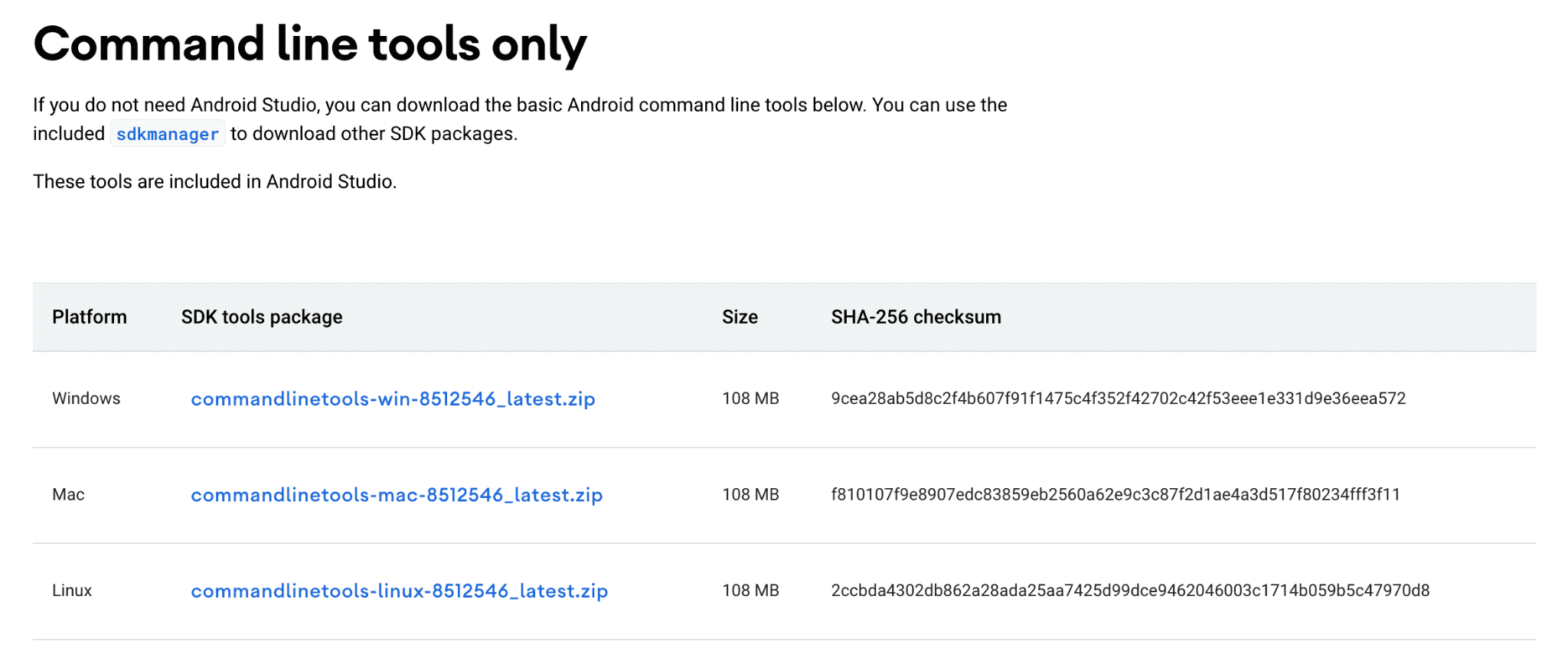
Here, choose the version for your operating system, download it, and then move the file to your home folder. Running it on Linux and Windows may require additional tools, like Gradle, while macOS versions are more accessible to set up.
To install the packages of Android SDK, you’ll need an instrument called SDK Manager. Luckily, the Google Developers page for the Kit provides all the info on installing it using the Manager and without the Studio, including all of the necessary steps. They involve creating directories and sub-directories, setting and updating the needed packages, etc.
What to Take Away
Building an Android app is easy with the right tools. Luckily, all of the necessary ones are already included in the Android Software Development Kit. It can be installed as part of Android Studio or as separate tool packages. Both options can be downloaded from the Google Developers page, which also provides the main prerequisites and the necessary steps.
SDK can be run on the major operating systems — Windows, macOS, and Linux. Still, some systems may need to use additional tools (Gradle) to proceed with the installation. Setting it up automatically isn’t always an option since the SDK can be heavy and has detailed system requirements. In such cases, the manual setup is recommended. It requires a bit more work and writing some code, but it’s nothing that the experienced web developer can’t handle.