 Do Son
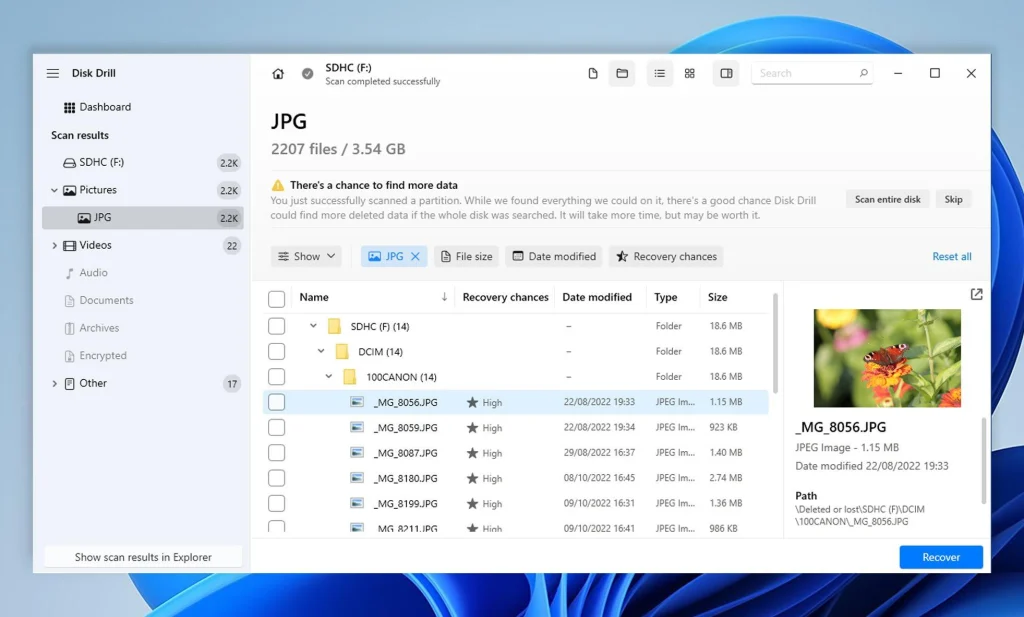
If Windows Defender deleted files automatically, first determine whether it quarantined or removed them. Quarantined files may be restored through Windows Security or a command-line tool. If no quarantine copy remains, backups or data recovery software may help. Before restoring an executable, establish why Defender flagged it: recovering malware can recreate the threat.
Check What Defender Did to the File
Open Windows Security > Virus & threat protection > Protection history. Select Filters > Quarantined items or inspect recent detections. Administrator approval may be required to view details.
The alert indicates what happened:
- Threat quarantined: Defender isolated the file. Restore is available, but the file may be detected again.
- Threat blocked: Defender blocked and removed the threat. Allow affects future detections; it does not recover the deleted copy.
- Threat found – action needed: Defender is waiting for a decision. You can quarantine the item or, after verification, choose Allow on device.
- Remediation incomplete: Defender could not finish the cleanup. Open the event for its next steps; don’t assume the file was successfully removed.
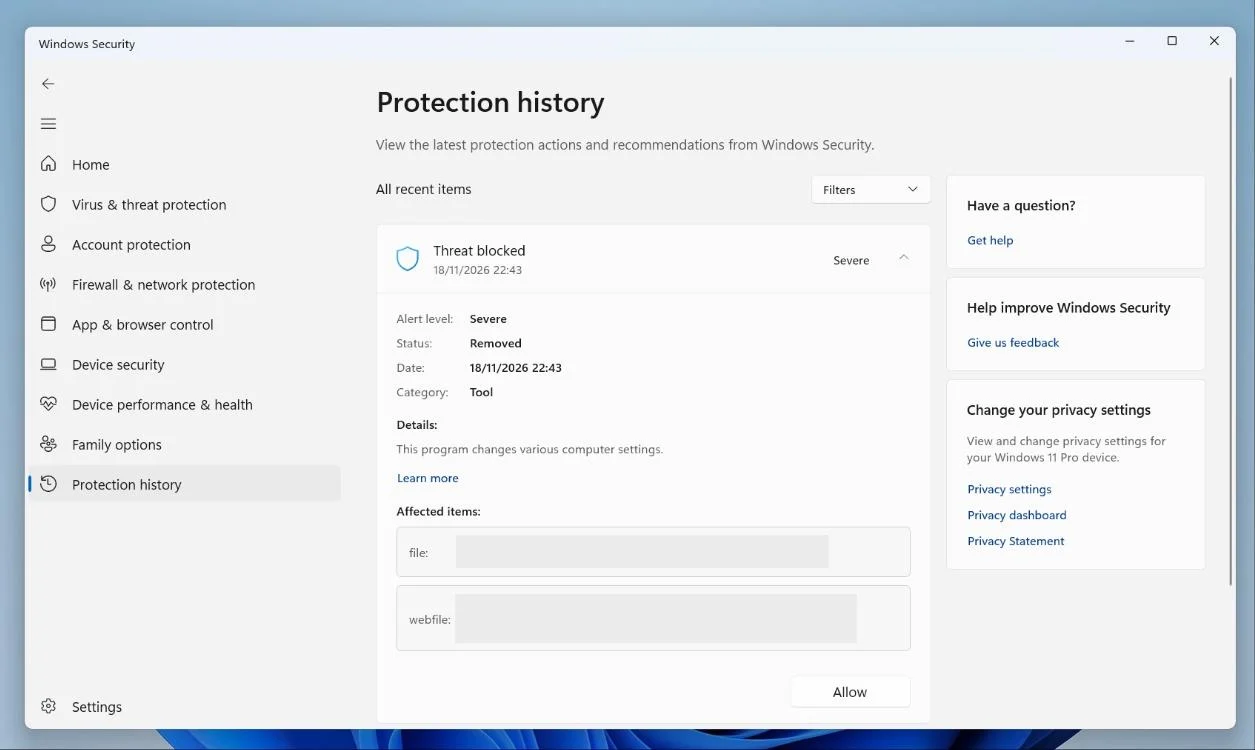
Note the detection name and original file path. Microsoft says Protection History shows events from the last two weeks. Quarantine retention is separate; an expired history entry does not necessarily mean the quarantined file is gone.
Determine Whether Restoring It Is Safe
Legitimate scripts, utilities, or installers can trigger false positives. A detection ending in !ml is commonly associated with machine-learning detection, but does not establish that the file is harmless. PUA:Win32/ identifies potentially unwanted software, not necessarily malware.
Check the download source and publisher. If you have a verified copy, compare SHA-256 hashes. For a file extracted to a controlled folder, run:
Get-FileHash “C:\Triage\sample.exe” -Algorithm SHA256
You can search that hash on VirusTotal without uploading the file itself. A clean result does not guarantee safety, and confidential binaries should not be uploaded to public scanners. Never execute an uncertain file merely to check whether it works. If the source was an unsolicited attachment or a cracked installer, do not treat the alert as an inconvenience to bypass.
Windows Defender Quarantine Recovery: Two Methods
Knowing how to restore files deleted by Windows Defender starts with checking whether a quarantined copy is still available. If it is, Windows provides two ways to retrieve it.
Restore Through Windows Security
- Open Windows Security > Virus & threat protection > Protection history.
- Select Quarantined items, then open the relevant detection.
- Under Actions, choose Restore only if you have established that the file is safe.
- Check the original folder. Defender can detect the restored file again and show Threat found – action needed. Allow on device is a separate authorization for a verified false positive, not a recovery command.
If the original folder or USB drive is unavailable, use the command-line option to specify another destination rather than restoring blindly.
Restore or Inspect With MpCmdRun
Launch Command Prompt as administrator. Find MpCmdRun.exe in the newest version folder under:
C:\ProgramData\Microsoft\Windows Defender\Platform\
If it is not there, check C:\Program Files\Windows Defender\. Change into the folder containing the executable and list the quarantined items:
MpCmdRun.exe -Restore -ListAll
To restore the latest item associated with a specified threat name:
MpCmdRun.exe -Restore -Name “<threat name>”
Multiple files can share a threat name. To target one item and extract a copy to a separate folder for inspection, first create C:\Triage, then run:
MpCmdRun.exe -Restore -FilePath “<original file path>” -Path “C:\Triage”
Microsoft documents that -Path leaves the quarantined item in place while restoring a copy elsewhere. Do not run the extracted copy without verification. On managed PCs, follow the security team’s procedures.
Recover Missing Files With Disk Drill
If Defender cannot restore a file, check any existing File History, Previous Versions, or OneDrive backup first. For OneDrive personal accounts, deleted items generally remain in the online Recycle bin for 30 days.
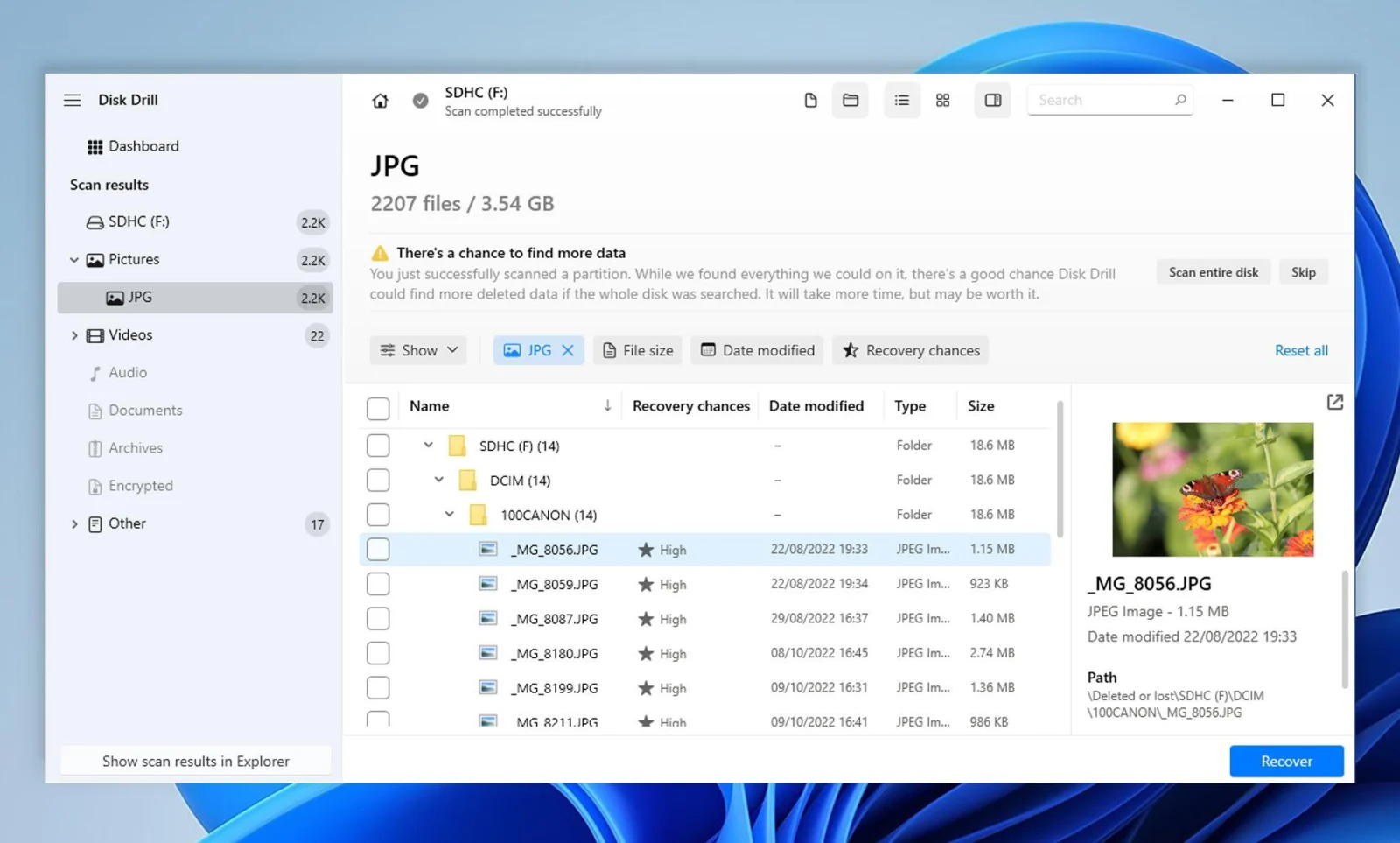
Disk Drill can help in both scenarios: when a quarantined file cannot be restored through Windows Security and when Defender has removed it entirely. Rather than accessing Defender’s encrypted quarantine, Disk Drill scans the original drive for recoverable data. Its Universal Scan combines file-system analysis with signature-based recovery, helping locate files even when their original names or folder records are missing. It supports NTFS and exFAT volumes on internal disks and USB drives.
- Install Disk Drill on another drive to avoid adding new data to the affected volume.
- Select the source disk in Disk Drill. If the file originally came from a USB stick, select the USB device rather than the Windows system disk holding Defender’s quarantine.
- Click Search for lost data > Universal Scan. Disk Drill searches surviving file-system records and recognizes supported file signatures to find lost data.
- Open Review found items. Search by filename, extension, or original folder. Check Deleted or lost for files with surviving metadata and Reconstructed for files identified through signatures.
- Review the results using Disk Drill’s Recovery Chances estimates and built-in previews. Preview documents or photos to verify their contents before recovery. Executable files may not offer meaningful previews, and a high recovery estimate is not a guarantee.
- Select the files, click Recover, and save them to a different drive. Scan recovered files with Defender before opening them.
For removable media, flash drive recovery works the same way. The result depends on whether the original data is still available, not simply on whether Defender labeled the action Quarantined or Removed. Standard Defender removal is not secure erasure, although later writes or SSD TRIM can limit recovery.
If the File Was on a USB Drive
When Defender quarantines a USB file, the quarantined copy is stored on the Windows computer that detected it. Check that computer’s Protection History or MpCmdRun even if the USB drive appears empty. If the USB device was disconnected, reconnect it only when you are ready to inspect or recover data, and avoid saving anything new to it.
If the USB stick was formatted while troubleshooting, recovering files from a formatted usb drive requires a different approach. A quick format may leave recoverable data; a full format or flash-controller cleanup may not. Avoid further writes or formatting.
Prevent Repeat Detections Without Disabling Protection
For a confirmed false positive, submit the sample and detection details to Microsoft Security Intelligence. An updated build from the publisher may also fix the issue.
If a temporary exception is essential, open Windows Security > Virus & threat protection > Manage settings > Exclusions > Add or remove exclusions. Exclude only the verified file, not a whole drive, folder, or file extension, and remove the exception when it is no longer needed.
Exclusions can also be abused. In a NightshadeC2 campaign reported by SecurityOnline, a loader repeatedly ran PowerShell to add Defender exclusions before deploying its payload. On managed systems, preserve the alert and obtain approval before changing security settings.
Recover the file without restoring the threat Defender identified.