 Do Son
The Zscaler App is one of those pieces of software most people never choose for themselves. It shows up on a work phone because an IT team put it there, and it quietly routes traffic through Zscaler’s cloud security stack. The Android version bundles both Zscaler Internet Access and Zscaler Private Access, which means it handles general web filtering and access to internal company resources from the same client.
That dual role is what makes it interesting to look at on a bigger screen. Running the mobile client inside Windows isn’t a standard corporate deployment, but it does happen, usually when someone is testing enrollment behavior, documenting a rollout, or wants a second sandboxed instance separate from their primary machine.
The First Screen: Enrollment, Not Setup
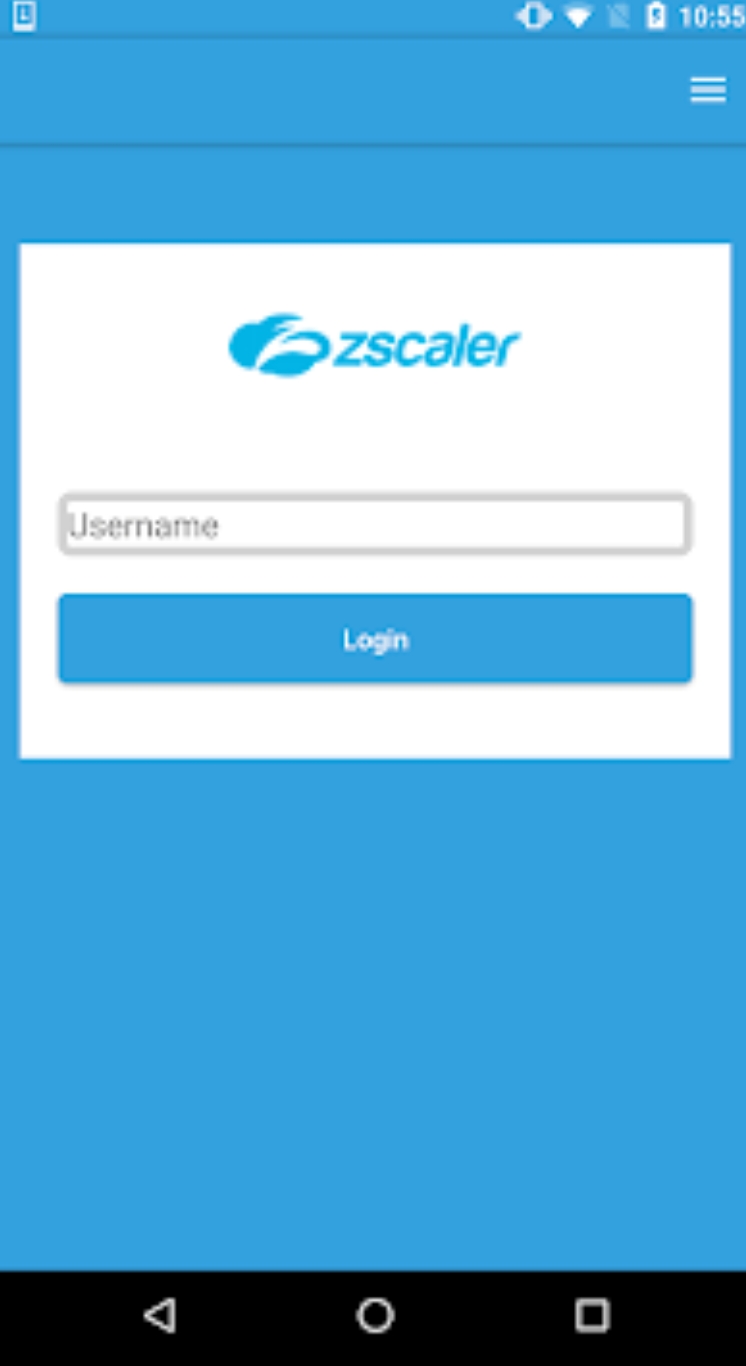
Open the app cold and there’s almost nothing to configure. You get a login prompt tied to your organization’s Zscaler tenant, and everything past that point is determined by policy pushed from the cloud. There are no toggles for filtering strength, no whitelist you can edit, no “advanced” tab hiding useful switches.
This trips people up. Consumer VPN and security apps train you to expect a dashboard full of options. Zscaler App is deliberately the opposite: the interesting configuration lives in the admin console, and the client is a thin, obedient endpoint.
You also hit the Device Administrator permission request early on. The store listing is upfront about this, and it’s not optional. On Windows via an emulator, granting it works, though the prompt language about remote wipe and lock feels odd in a virtual environment where those actions mean something different.
What the Status Panel Shows
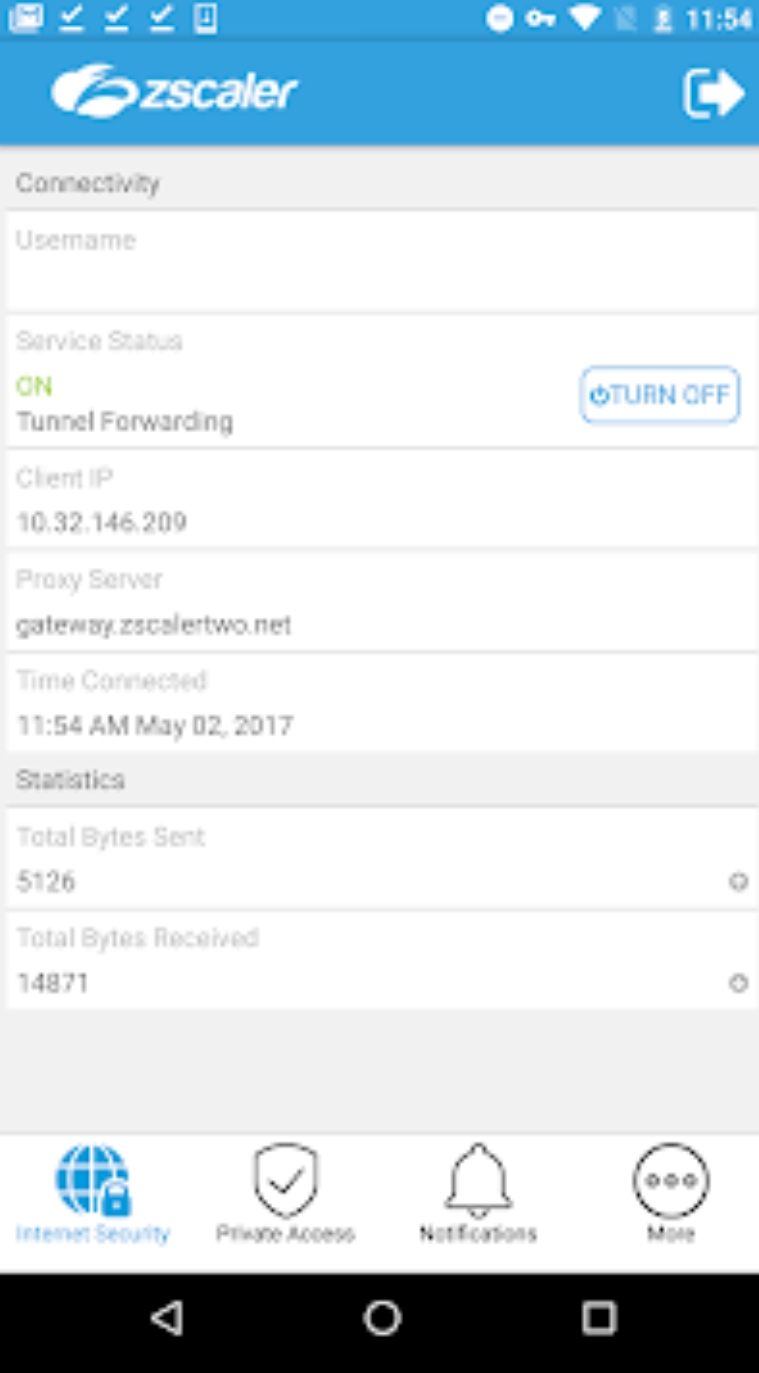
Once enrolled, the main view is a status panel. It tells you whether the tunnel is up, which modules are active, and which service edge you’re connected through. Useful information, presented plainly, with no chart or animation padding it out.
- Connection state for the Internet Access module
- Connection state for the Private Access module
- The authenticated user identity and tenant
- Basic diagnostic and log-export controls
That’s roughly the extent of the interface. Anyone hoping for per-app traffic breakdowns or a live block log will find the client quieter than expected.
Zscaler App for PC Through an Android Emulator
Because there’s no native Windows build of this particular Android client, the practical route is an Android emulator. BlueStacks handles it without much fuss, and the general shape of the process is the same as with any enterprise app that expects Play Services present.
The broad steps look like this:
- Install the emulator on Windows and let it finish its first-run setup.
- Sign in to the Google account inside the emulator so the Play Store is usable.
- Search for Zscaler App and install it as you would on a phone.
- Launch it and enter your organization’s credentials at the enrollment prompt.
- Approve the Device Administrator request when the system dialog appears.
Emulator quirks vary enough between enterprise apps that a walkthrough helps, and a step-by-step reference for how to download Zscaler for Windows will save some guessing about which permissions to expect along the way.
Here’s the catch: the app is meant to be used with an active enterprise subscription to Zscaler’s Mobile Security service. Without a tenant to enroll into, you get a login screen and nothing else. There’s no demo mode, no trial flow, no offline sandbox.
How the Controls Feel With a Mouse
Surprisingly fine, mostly because there’s so little to interact with. Buttons are large, the layout is single-column, and nothing depends on gestures or multi-touch. Clicking through enrollment feels natural.
The awkwardness comes from the emulator’s own networking. The Zscaler tunnel sits inside a virtualized network stack that already sits behind whatever your Windows host is doing, and that layering makes troubleshooting connection issues harder than on a phone. When something fails, you’re not always sure which layer failed.
Log export works, and pulling the log file out of the emulator’s shared folder into Windows is straightforward. That alone is a reason some admins bother with this setup: reading diagnostic output in a real text editor beats squinting at it on a handset.
Where the Design Logic Comes From
The reasoning behind the app is spelled out in the store description from the developer listed as Zscaler Inc, and it’s a fair point. Most mobile web traffic now originates in apps rather than browsers, so a traditional appliance sitting at the network edge never sees it. Routing device traffic to a cloud inspection layer closes that gap.
Applied to a Windows emulator, that logic gets fuzzy. You’re securing traffic from a virtual Android device that lives inside a PC that presumably has its own endpoint controls. It’s a testing arrangement, not a security posture.
An emulator install is a lab exercise, not a deployment. If the goal is checking how enrollment behaves or grabbing screenshots for documentation, this setup does the job. Production traffic still belongs on whatever device your organization actually issued and locked down through its own policy.