 Do Son
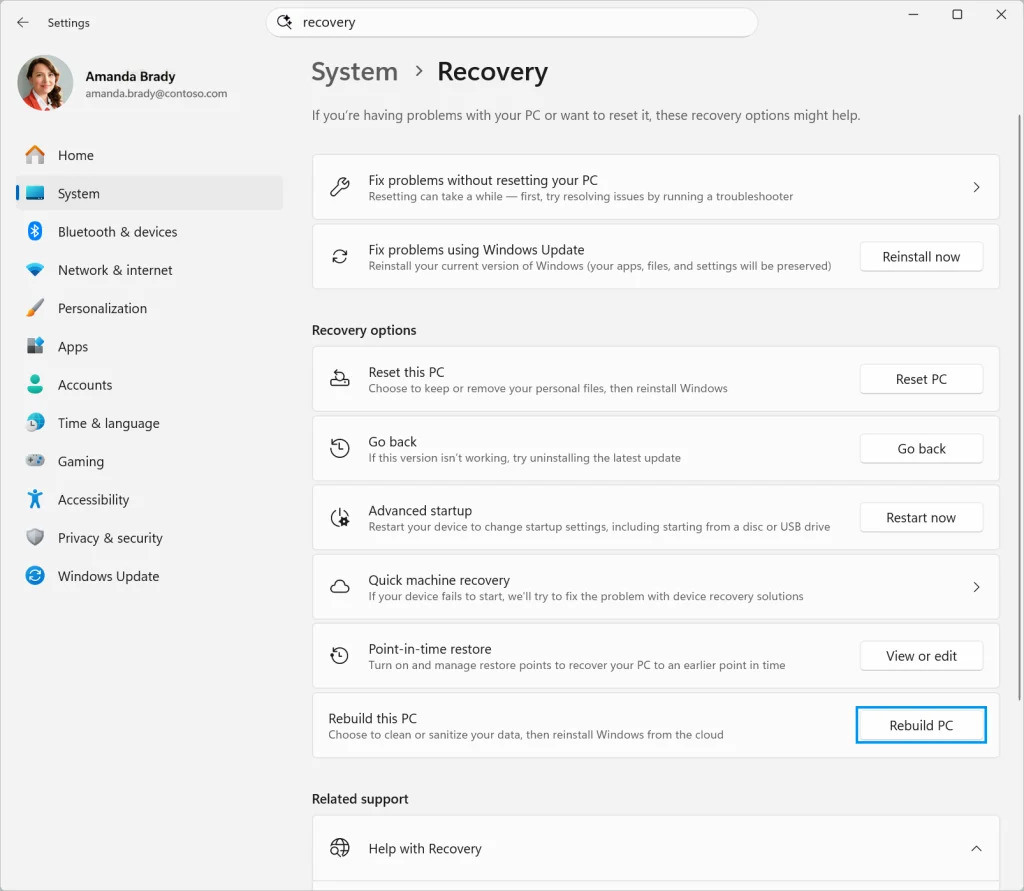
Microsoft officially deployed an automated recovery mechanism for modern desktop environments. Specifically, the new Windows 11 Cloud Rebuild feature allows users to restore corrupted operating systems directly over the internet. When persistent boot failures occur, the Windows Recovery Environment downloads fresh system images alongside certified device drivers. Furthermore, this cloud process completely eliminates the historical requirement for bootable USB media. Consequently, users can recover malfunctioning computers without borrowing secondary hardware.
Distinguishing Cloud Rebuild from Standard System Resets
Traditional recovery routines frequently offer to preserve local user profiles and personal documents. In contrast, the dedicated cloud rebuild protocol executes an uncompromising clean reinstallation. The system purges local data partitions thoroughly before provisioning authenticated operating system assets. Therefore, this workflow caters directly to users seeking an immaculate software foundation.
Additionally, the utility accommodates several vital operational scenarios across desktop management. For instance, individuals preparing to sell hardware can sanitize storage volumes securely. Furthermore, systems administrators managing unbootable workstations can bypass lengthy manual deployments. As detailed in the official Microsoft guide to Windows 11 Cloud Rebuild, the mechanism ensures hardware drivers match device specifications automatically.
Safeguarding User Data and BitLocker Encryption Keys
Because a complete rebuild erases underlying storage volumes, preserving personal records requires advance planning. If an unbootable workstation lacks recent cloud backups, administrators should deploy pre-installation environments like WinPE. Specifically, technical personnel can boot external maintenance environments to extract valuable local files.
However, encrypted storage drives require specialized recovery credentials before mounting. Operating systems utilizing Device Encryption or Microsoft BitLocker protect volume structures aggressively. Consequently, technicians must locate their cryptographic keys within linked account dashboards beforehand. Without these essential keys, rescue environments cannot access protected storage partitions.
Step-by-Step Initialization and Network Connectivity
Initiating the restoration workflow depends on current system responsiveness:
- If desktop access remains functional, navigate to Settings, choose System, open Recovery, and select Rebuild this PC.
- If repeated startups fail, the operating system automatically directs users into the advanced recovery menu.
- Inside the recovery interface, navigate through Troubleshoot to launch the cloud restoration utility.
Finally, completing the procedure requires reliable internet connectivity throughout the download phase. Fortunately, the recovery environment automatically attempts reconnection using stored wireless network credentials. However, technicians strongly recommend wired Ethernet connections for enhanced data transmission stability. If wireless connections fail on laptops lacking network jacks, external USB network adapters ensure uninterrupted transfers. Ultimately, this seamless cloud pipeline modernizes desktop maintenance across the Windows ecosystem.
Support Our Threat Intelligence
Find our tech and OS security coverage helpful? Support our work today and unlock a 100% ad-free reading experience!
 Buy Me a Coffee
