 Do Son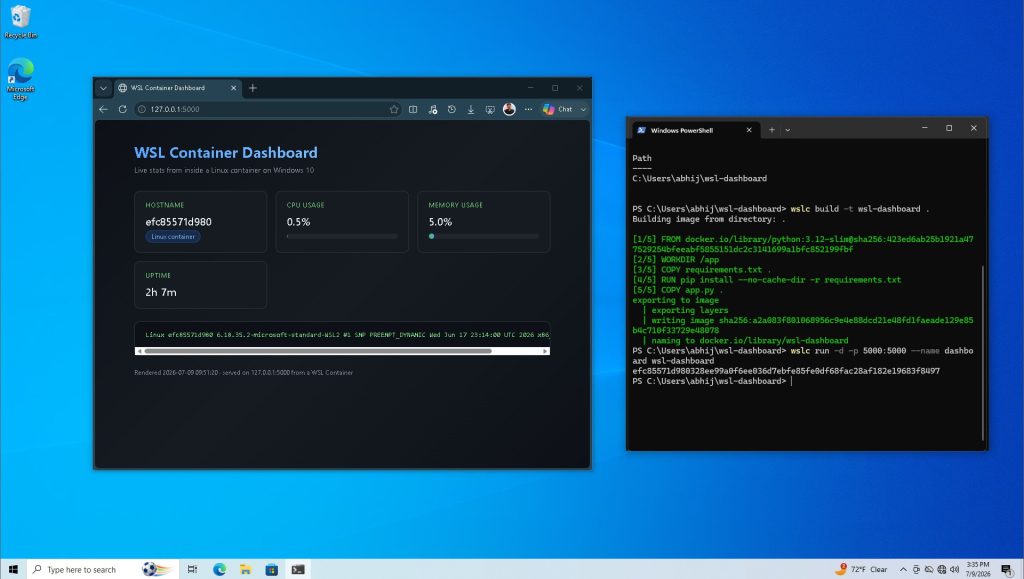
Image: Windows Latest
Earlier this year, Microsoft released WSL Containers, its native container platform built directly into the Windows Subsystem for Linux. Users can deploy and run containers without installing Docker Desktop. Because no persistent desktop client runs in the background, the approach also conserves hardware resources. As a result, WSL Containers has found a receptive audience among developers and power users who work with containers regularly.
According to Windows Latest’s coverage of WSL Containers on Windows 10, the feature extends further back than most users expected.
WSL Containers Confirmed to Work on Windows 10
Microsoft has now confirmed that WSL Containers also runs on Windows 10. That confirmation comes even though Microsoft officially ended mainstream support for that OS. Normally, a product that has reached end-of-life receives no new features. WSL Containers is an exception.
Craig Loewen is the Microsoft product manager responsible for WSL development. He confirmed that WSL Containers works on Windows 10 and any other system that supports WSL.
Minimum System Requirement
For Windows 10 users specifically, the minimum supported version is 2004, corresponding to Build 19041. WSL has its own baseline system requirements. As long as a device can install and run WSL, it can also install and run WSL Containers.
This is not technically a new Windows 10 feature. Rather, WSL Containers ships as part of the WSL update pipeline and therefore bypasses operating system feature restrictions entirely.
How to Deploy WSL Containers on Windows 10
By default, Windows 10 ships without WSL and without Windows Terminal. For the best experience, install the open-source Windows Terminal application first. Then proceed with WSL 2 and WSL Containers. Before starting, verify the system meets the minimum version requirement.
Follow these six steps:
- Check your build number. Press Win+R, type
winver, and press Enter. The version number appears in the dialog box. - Install WSL. Open Command Prompt as Administrator and run
wsl --install. This process may take several minutes. - Update the container build. Run
wsl --update --pre-release. - Restart the subsystem. Run
wsl --shutdown. - Verify the deployment. Reopen Command Prompt and run
wslc --versionto confirm WSL Containers has been deployed successfully. - Explore available commands. Run
wslcon its own to access the container help documentation and available commands.
Support Our Threat Intelligence
Find our tech and OS security coverage helpful? Support our work today and unlock a 100% ad-free reading experience!
 Buy Me a Coffee
