 Do Son
Image: Windows Latest
Microsoft has begun gradually rolling out the Extended Security Updates (ESU) program for Windows 10, offering individual and home users an additional year of security support for a fee of $30 per PC.
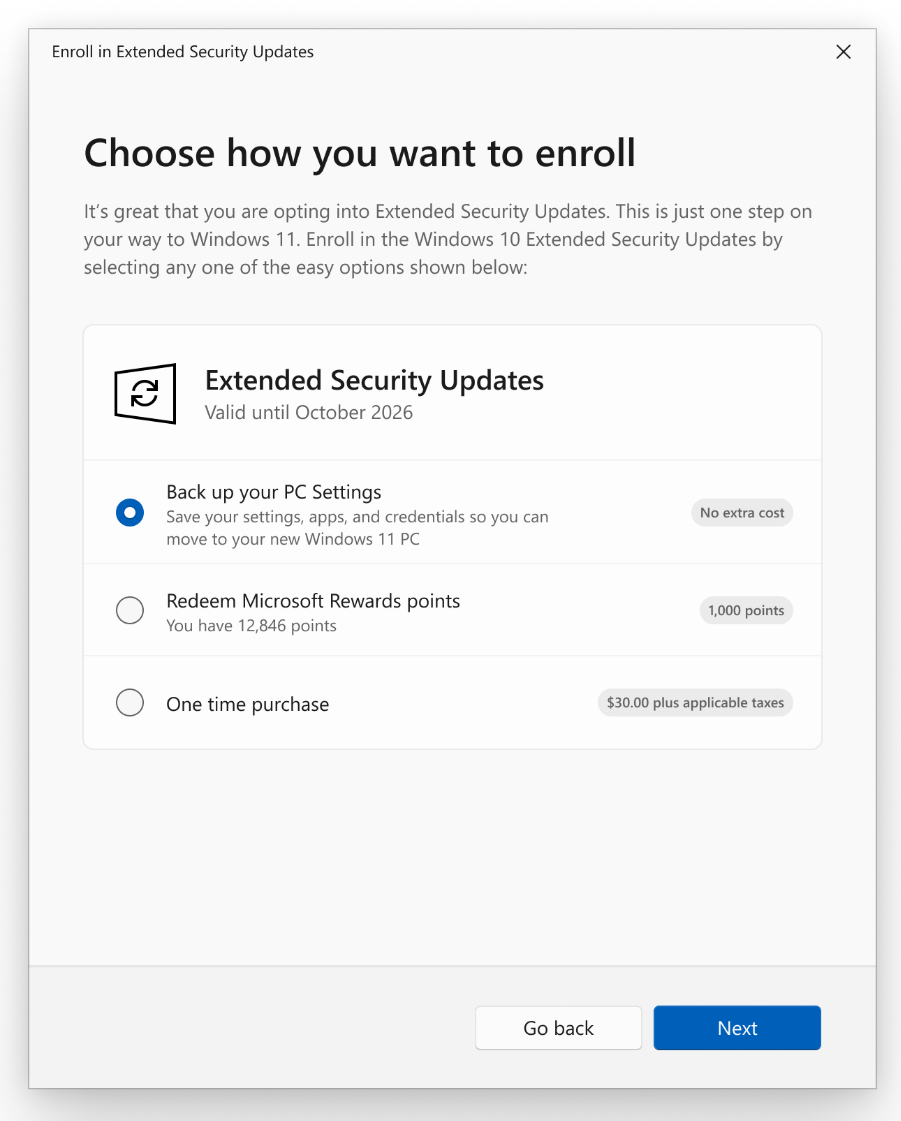
Alternatively, users can obtain ESU access without direct payment by using Windows Backup or redeeming Microsoft Bing Rewards points. Once redeemed, the ESU license must be linked to the user’s Microsoft account, which must then be used to sign in on the PC requiring extended support.
According to Microsoft’s latest documentation, each ESU license for personal and home users can be associated with up to 10 PCs per account. This means that, within this limit, multiple devices can share the same license. From this perspective, it is clear that Microsoft is not aiming to profit significantly from individual ESU purchases—after all, if the maximum allocation of 10 PCs is used, the cost per machine drops to just $3, which is even lower than the educational edition ESU license price.
Furthermore, there is no difference in entitlements based on how the license was acquired. Whether purchased for $30 or redeemed through alternative means, the license grants identical rights, allowing it to be used on up to 10 PCs to continue receiving updates.
It should be noted that personal and home ESU licenses cannot be used on business devices. Enterprises must purchase the commercial edition of the ESU license, which costs $61 per PC in the first year and increases annually.
For personal and home users, the ESU license is valid for only one year, meaning official support will end in October 2026 regardless (although those using unofficial methods, such as MAS activation for the enterprise license, can obtain up to three years of ESU updates).
To enroll your device in ESU:
- Go to Settings > Update & Security >Windows Update. If your device meets the prerequisites, you’ll see a link to enroll in ESU.
- Once you select Enroll now you’ll start the ESU enrollment. If you are signed into Windows with a local account, you will be prompted to sign into your Microsoft account. If you are already backing up your PC Settings, you will see a prompt to enroll your device.
- If you aren’t backing up your Windows settings, you can choose if you want to begin backing up your settings, redeem Rewards, or make a one-time purchase to enroll in ESU.
- You can use your existing ESU license on up to 10 devices once you enroll in ESU. Just go to Settings > Update & Security >Windows Update and select Enroll now.
- You can use your existing ESU license on up to 10 devices once you enroll in ESU. Just go to Settings > Update & Security >Windows Update and select Enroll now.
Related Posts:
- Windows 10 ESU Program: A Lifeline for Holdouts, But at What Cost?
- Windows 10 Users Get Free ESU: Microsoft Offers 1 Year of Security Updates via Backup or Rewards
- Microsoft Pushes Windows 11 Upgrade Over ESU: Highlighting AI, Security, & Speed Ahead of Win10 EOL
- Windows 10 ESU: Any Activated PC Can Get Extended Security Updates, No Windows 11 Hardware Needed
- Windows 10 End-of-Life: Microsoft Extends 365 Support Until 2028 with ESU Program
Support Our Threat Intelligence
Find our tech and OS security coverage helpful? Support our work today and unlock a 100% ad-free reading experience!
 Buy Me a Coffee
