 Do Son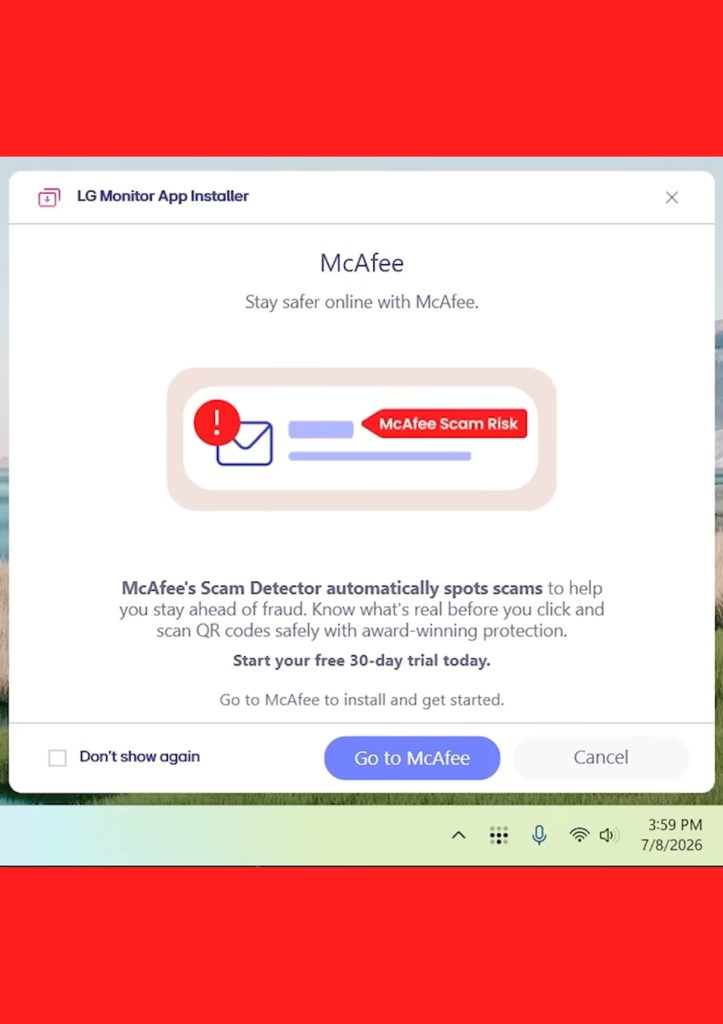
Owners of LG monitors recently discovered something unwelcome on their desktops. Their displays had silently triggered the download of companion software, and that software began serving pop-up advertisements for McAfee. The behavior sparked widespread frustration among users, as highlighted by International Cyber Digest on X.
Community research traces the practice back to July 2025. Since then, LG has pushed this bundled utility onto Windows machines automatically, and users never receive a consent prompt. Many owners now openly describe the tool as junkware.
From Companion Utility to Ad Delivery Channel
According to LG, the software serves a legitimate purpose. It lets users control and fine-tune their displays, switch between multiple monitors, and adjust screen color profiles. However, a recent update quietly added promotional features on top of those controls.
Unfortunately, the exact timeline remains murky. Microsoft removed the “last updated” field from its Store listings years ago. As a result, nobody can pinpoint when LG shipped the ad-enabled build of its utility.
Why Windows Installs the Software Without Consent
The root cause lies in a Microsoft policy rather than a security flaw. Microsoft offers OEMs a device metadata mechanism that links hardware to companion apps. A vendor simply prepares its software, then adds the appropriate association flags to the device metadata.
In practice, the process works like this: a user connects an LG monitor to an internet-connected PC. Windows 10 or Windows 11 then fetches the associated app from the Microsoft Store and installs it silently. At no point does the operating system ask for permission.
Despite the growing backlash, neither LG nor Microsoft has issued any public response. In effect, LG has repurposed a mechanism meant for drivers and essential companion tools into a bundling and advertising channel.
Blocking the Downloads With Group Policy
Fortunately, Microsoft ships an off switch for this behavior. IT administrators can use Group Policy to stop hardware from auto-installing associated apps. Home power users can apply the same setting, which also covers similar bundling seen with some Razer hardware.
Follow these steps to disable metadata-linked app downloads:
- Press Win + R, type gpedit.msc, and press Enter. Alternatively, search for “Group Policy” in the Windows search box.
- Navigate to Computer Configuration > Administrative Templates > System > Device Installation.
- Locate the policy named “Prevent Windows from automatically downloading applications associated with devices”.
- Double-click it, change the setting from Not Configured to Enabled, and save.
A Word of Caution for Everyday Users
This tweak comes with a trade-off. Once you block metadata downloads, some hardware may no longer receive its companion software automatically. Consequently, users who cannot locate the right utilities on their own may run into usability problems later.
For that reason, the Group Policy route suits professional users best. Everyday users should weigh the risk before flipping the switch. Note also that Windows 10 and 11 Home editions lack the Group Policy Editor, so this fix only applies to Pro and Enterprise systems.
Support Our Threat Intelligence
Find our threat intelligence and malware analysis helpful? Support our work today and unlock a 100% ad-free reading experience!
 Buy Me a Coffee
