 Do Son
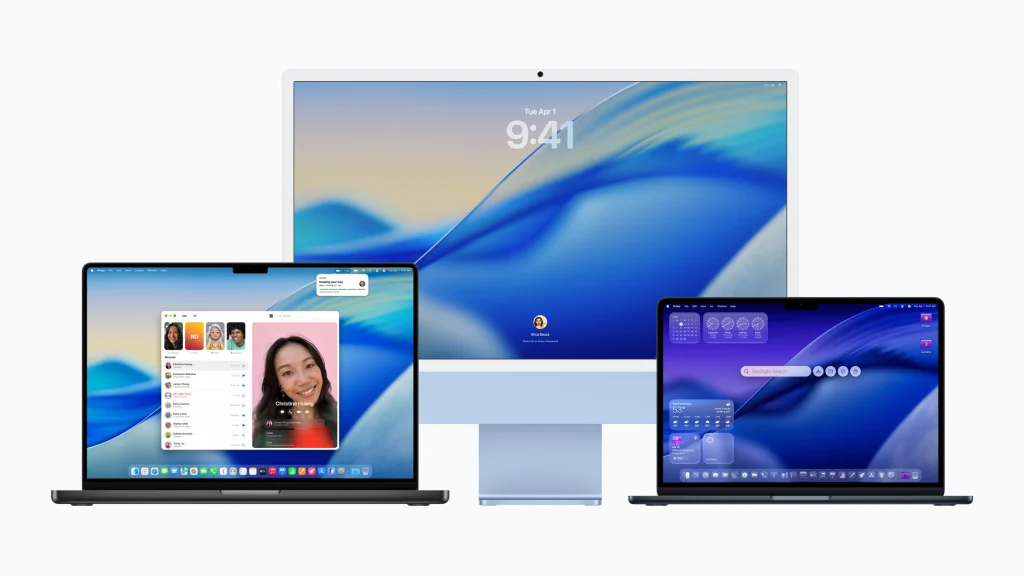
Apple recently released macOS 27.3 Beta 2 with major privacy upgrades. Specifically, the updated macOS 27.3 permissions refine how software accesses sensitive files and controls other programs. When eligible applications request Full Disk Access, users can now restrict visibility to specific folders. Furthermore, users can limit automation tools to controlling only selected applications. Individuals can even configure these tools to request approval before every single action.
Meanwhile, artificial intelligence assistants and third-party utilities can still request broad Full Disk Access. Ultimately, users retain full authority over whether to grant unrestricted system visibility. Existing permissions granted prior to the update remain active after upgrading. However, Mac owners can easily tighten these legacy app privileges inside System Settings.
Shifting From Full Disk Access to Specific Folders
Traditionally, Full Disk Access grants sweeping privileges across the entire operating system. Authorized programs can read, modify, delete, or export files anywhere on the drive. Consequently, a single over-privileged app exposes Mail, Messages, Photos, and other local user accounts.
To reduce this security risk, macOS 27.3 adds granular folder selection to select authorization prompts. Users can expose strictly the specific directories required for their daily workflows. As detailed in the MacRumors overview of macOS 27.3 Beta 2, system alerts also provide clearer warnings. Specifically, authorization dialogs now list exact data categories that Full Disk Access exposes. Therefore, users can evaluate privacy risks carefully before clicking allow.
Per-App Authorization for Automation Utilities
Additionally, Apple reorganized its privacy settings menu in this beta release. The combined Device Control and Data Access panel from macOS 27.2 now splits into two distinct categories. First, Accessibility governs dedicated assistive technologies. Second, System and App Control regulates software that automates tasks or manipulates other applications.
Menu Bar Indicators and Per-Action Prompts
Under this refined framework, users specify exact target applications for every automation utility. For example, you can permit an agent to automate Mail while blocking access to Messages. Moreover, users can require automation tools to request fresh authorization upon every access attempt. Finally, App Control introduces a persistent menu bar indicator during active automation sessions. Whenever your Mac controls another application, this visual alert notifies you immediately.
Support Our Threat Intelligence
Find our tech and OS security coverage helpful? Support our work today and unlock a 100% ad-free reading experience!
 Buy Me a Coffee
