 Do Son
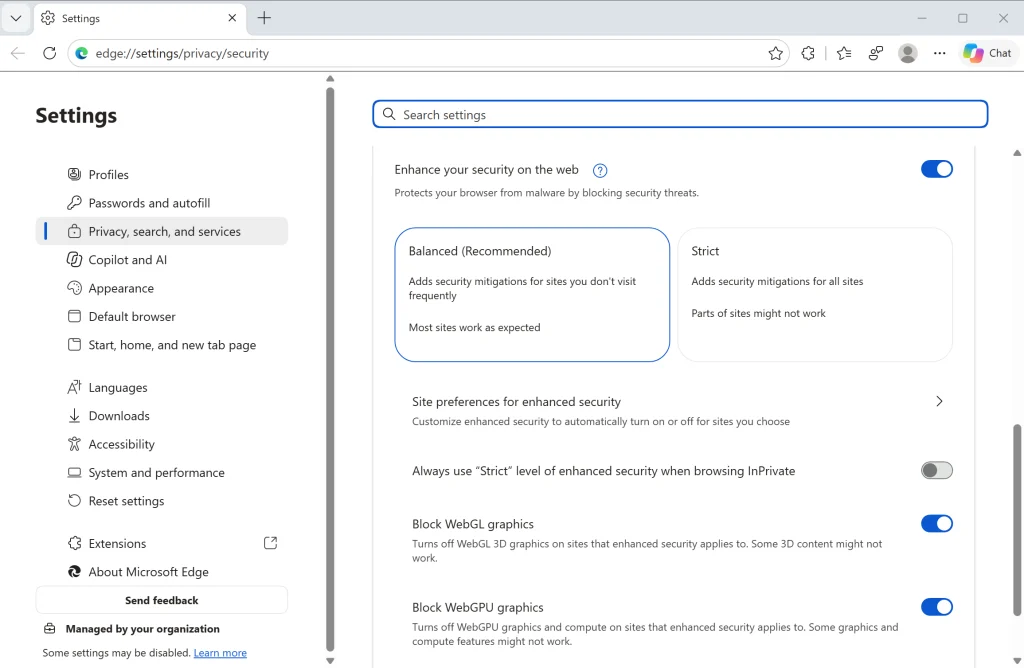
Microsoft is currently testing a hardened security feature for its desktop browser. Specifically, Microsoft Edge Lockdown Mode protects high-risk users against sophisticated web exploits. Once enabled, the browser restricts websites from accessing vulnerable graphics interfaces. Consequently, attackers gain far fewer opportunities to trigger browser memory corruption bugs.
Currently, engineers are evaluating this feature inside Microsoft Edge Canary builds. When active, Lockdown Mode blocks websites from invoking WebGL, WebGL2, and WebGPU APIs. While this restriction strengthens defense-in-depth security, it may disrupt legitimate web applications that rely on hardware-accelerated graphics.
Disabling Graphics Interfaces Shrinks the Attack Surface
Normally, WebGL and WebGPU allow websites to harness GPU hardware for browser games, interactive maps, 3D rendering, and compute tasks. However, these complex interfaces bridge browser components, third-party graphics libraries, and low-level device drivers. Because this code stack is vast, threat actors frequently target graphics vulnerabilities to compromise devices.
According to the Microsoft Edge engineering team’s Lockdown Mode documentation, initial protections focus directly on hardening the GPU process. By cutting off web access to graphics APIs, Microsoft reduces exposure to vulnerable driver code. Therefore, attackers face major barriers when attempting privilege escalation or browser sandbox escapes.
Furthermore, Microsoft reviewed real-world exploits observed in the wild since February 2022. Based on that telemetry, engineers estimate that Lockdown Mode mitigates roughly 60 percent of known privilege escalation exploits. Ultimately, this reduction delivers a substantial security upgrade for journalists, executives, and other high-risk targets.
How to Enable Lockdown Mode in Edge Canary
Security researchers and early adopters can test this experimental defense today. First, install the latest Microsoft Edge Canary preview build on your desktop. Next, navigate to edge://flags/#edge-sdsm-plus, enable the experimental flag, and restart the browser.
Verifying Enhanced Web Security and Testing WebGL
After restarting, open browser Settings, select Privacy, search, and services, and locate the Enhance your security on the web panel. Toggle this protection on and switch the profile to Strict mode. Inside those settings, verify that both Block WebGL graphics and Block WebGPU graphics appear enabled.
Finally, visit a graphics benchmark site such as https://webglsamples.org/ and launch any 3D demonstration. If the page fails to render the scene or reports a context error, Microsoft Edge Lockdown Mode is actively protecting your browser.
Support Our Threat Intelligence
Find our tech and OS security coverage helpful? Support our work today and unlock a 100% ad-free reading experience!
 Buy Me a Coffee
