 Do Son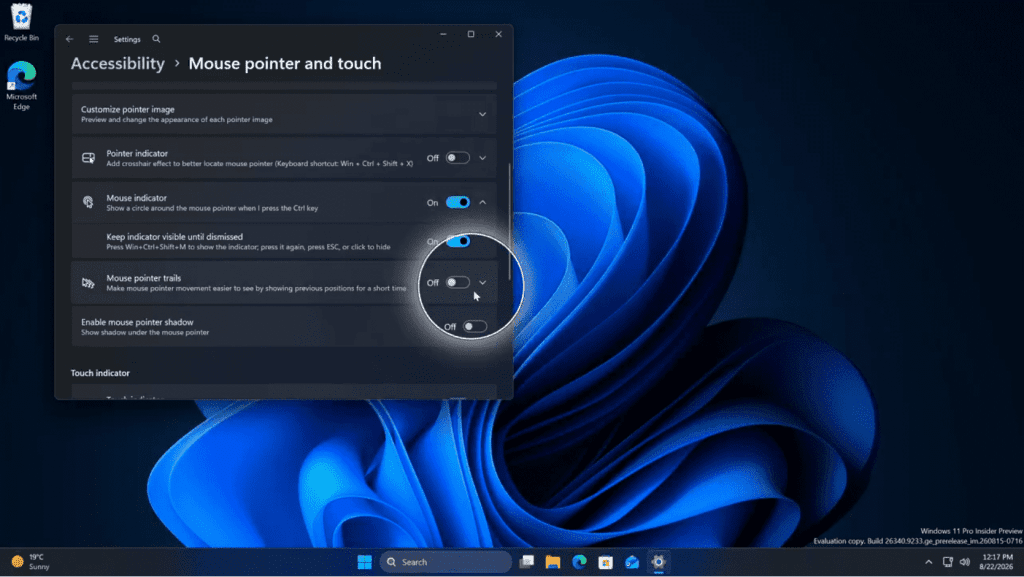
Microsoft is integrating the highly popular mouse pointer indicator from PowerToys directly into Windows 11. This feature highlights the precise location of the cursor upon pressing a designated keyboard shortcut. Consequently, it proves exceptionally practical for individuals utilizing high-resolution ultrawide monitors or multi-display configurations. Users often struggle to locate their cursor across expansive digital workspaces. Therefore, this intuitive visual addition becomes highly valuable.
Continuous Cursor Visibility Options
As recently demonstrated by keen observers, Microsoft introduced an experimental configuration within the settings menu of Windows 11 Build 26340.9233. Activating this specific option permanently illuminates the current position of the mouse. Specifically, a prominent circular halo envelopes the pointer constantly. Thus, even on screens boasting extraordinary resolutions, users can effortlessly identify the exact location of their cursor.
Microsoft offers several versatile configurations for this tool. Users can display the indicator continuously until they manually disable it. Alternatively, they can summon it utilizing the convenient Win+Ctrl+Shift+M keyboard shortcut. Ultimately, this flexibility allows users to maintain a perpetual visual aid if they prefer, rather than relying solely on momentary activation.
Enhancing Digital Accessibility
Furthermore, this notable enhancement represents a significant stride in digital accessibility. Visually impaired individuals frequently experience difficulty tracking a standard, small mouse pointer. Maintaining a perpetually enlarged indicator empowers these users to navigate their interfaces with much greater clarity. Consequently, this thoughtful integration substantially improves daily operational efficiency for many people.
The Comprehensive Power of PowerToys
Naturally, the dedicated PowerToys application provides a far more comprehensive suite of features. Once activated, users can trigger the PowerToys mouse indicator simply by double-tapping the left Control key. Moreover, the software allows extensive and detailed customization. Users can precisely tailor the dimensions of the indicator and adjust its display duration, such as setting it to 500 milliseconds.
Additionally, they can modify the color palette entirely. This specific feature provides critical support for colorblind users who require distinct visual contrasts. If you consistently lose track of your cursor, installing PowerToys remains a highly effective solution.
How to Install the Utility
To acquire PowerToys, navigate directly to the Microsoft Store and initiate a quick search. Following a successful installation, locate the mouse utilities within the primary input and output settings. Finally, activate the “Find My Mouse” feature. This activation unlocks robust customization options, including customizable trigger keys, border radius adjustments, personalized colors, and precise response times.
Support Our Threat Intelligence
Find our tech and OS security coverage helpful? Support our work today and unlock a 100% ad-free reading experience!
 Buy Me a Coffee
