 Do Son
Recent speculation suggested that Microsoft intended to integrate a mouse pointer locator feature directly into Windows 11. This feature draws heavy inspiration from the utility previously offered exclusively through PowerToys. This specific locator mechanism is primarily engineered to assist users in rapidly identifying their cursor’s position on expansive, high-resolution displays and ultra-wide monitors. Now, with the release of the latest beta build, this highly anticipated functionality is officially active.
Advanced Customization of Mouse Pointer Aesthetics
Within the Windows 11 Beta Build 26220.9568 iteration, Microsoft has successfully integrated a comprehensive custom mouse color functionality directly into the Accessibility settings. This feature is fundamentally designed to empower visually impaired individuals, particularly those experiencing color blindness. It lets them select distinctive hues that significantly enhance visual contrast. Naturally, standard users can also leverage this capability to personalize their cursor aesthetics according to their individual preferences. If you want to explore all the technical details, you can review the official preview build 26220.9568 release notes provided by Microsoft.
Beyond the array of system-defined presets, users retain the absolute freedom to craft entirely custom colors. Microsoft accommodatingly provides both RGB and HEX color value input fields. This ensures meticulous satisfaction for users possessing highly specific color preferences. To access these configurations, navigate sequentially through: Windows 11 Settings, Accessibility, Mouse pointer and touch, and finally, Custom color.
The Implementation of the Mouse Pointer Locator
The secondary major addition is the mouse pointer locator itself. Once activated within the settings, this feature is intuitively triggered by simply depressing the Ctrl key. Upon activation, a prominent, contracting black halo dramatically materializes around the cursor. This provides an immediate visual cue regarding its exact location on the screen. This effectively eliminates the persistent frustration of losing the cursor on exceptionally wide or dense displays.
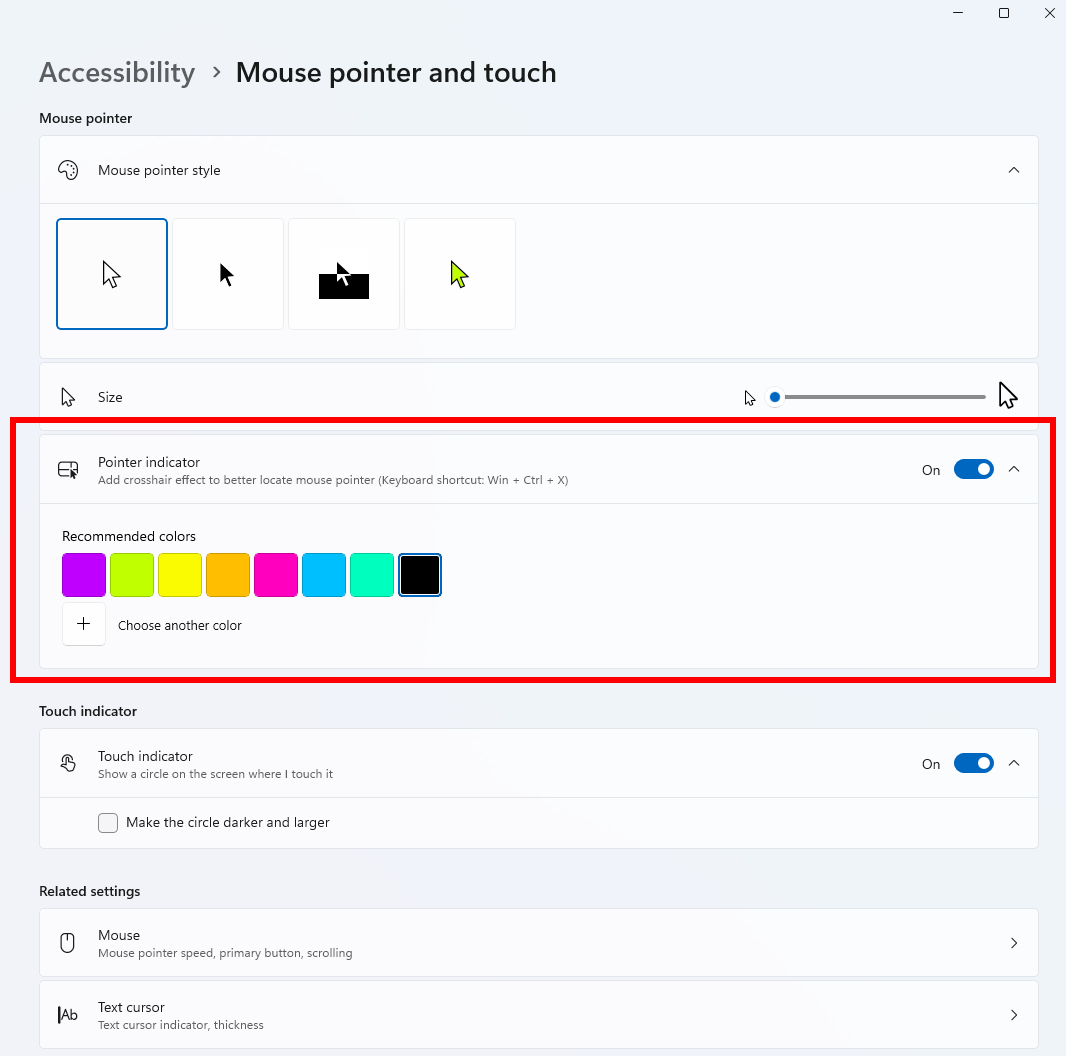
Currently, Microsoft does not provide the capability to map this trigger to a custom keyboard shortcut. Consequently, users might inadvertently summon the locator halo during routine typing if they accidentally strike the Ctrl key. If you frequently utilize the Ctrl key as a primary shortcut modifier within specialized software applications, it is highly advisable to reconfigure those specific software shortcuts. This proactive adjustment will prevent the locator halo from triggering incessantly and disrupting your workflow.
To enable this functionality, follow this path: Windows 11 Settings, Accessibility, Mouse pointer and touch, Mouse pointer locator. After enabling the option, pressing the Ctrl key should initiate a diagnostic test. This action typically generates the large, contracting black ring. However, early adopters note that the current visual styling of this ring is somewhat unrefined. This suggests that Microsoft will likely refine its aesthetics in subsequent updates.
Support Our Threat Intelligence
Find our tech and OS security coverage helpful? Support our work today and unlock a 100% ad-free reading experience!
 Buy Me a Coffee
