 Do Son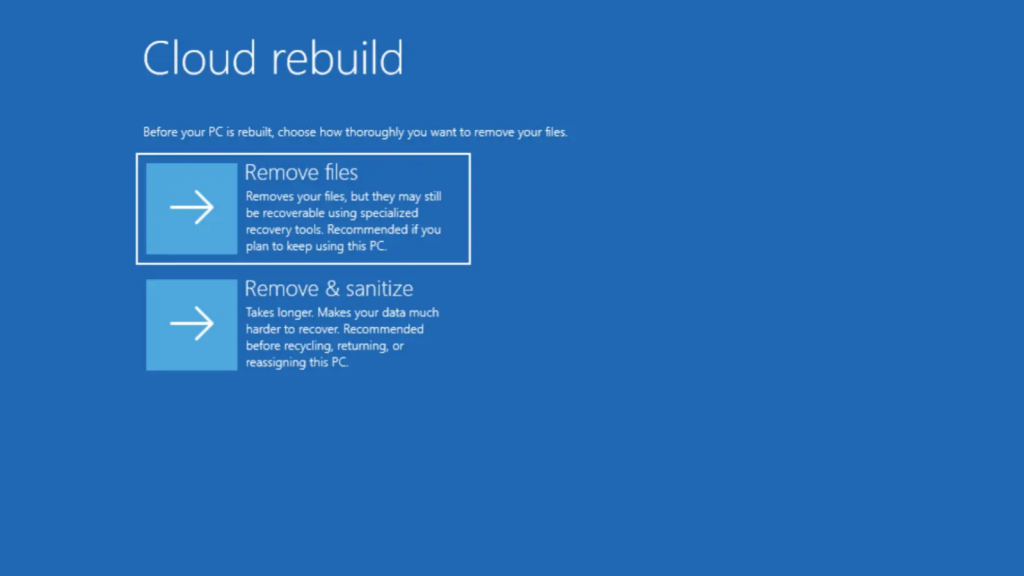
Cloud recovery represents a powerful new feature that Microsoft recently integrated into Windows 11. This tool utilizes the Windows Recovery Environment (WinRE). It connects to the internet to download the latest installation image directly from Microsoft. Then, it reinstalls the operating system automatically. Consequently, this entire process eliminates the need for a secondary computer. You no longer have to download images, burn them to a USB drive, or modify BIOS boot settings. Therefore, the cloud recovery function proves exceptionally useful for computers experiencing critical failures.
Prioritizing System Restoration Over Data
Importantly, you must note that cloud recovery focuses entirely on restoring functionality. It absolutely does not support data backup during the reinstallation process. Thus, users possessing critical files must prepare a USB drive beforehand. You should use a Preinstallation Environment (PE) system to extract your data safely. Additionally, if your system drive employs encryption, you might need your BitLocker recovery key.
Building a Rescue Drive Backup
As a result, we strongly advise keeping a spare USB drive available. A simple 4GB drive works perfectly for installing a fallback WePE system. If a genuine crisis occurs, you can still execute rescue operations through this PE environment. Alternatively, a larger 16GB drive offers even better utility. After installing WePE, you can also store a Windows 11 image directly on the drive. This preparation makes future offline reinstallations incredibly convenient.
New Erase Options in Cloud Recovery
Furthermore, the newest Windows 11 preview build introduces two distinct data clearing options for cloud recovery. You can review these updates directly in the Windows Insider release notes. If you plan to continue using the current computer, you can select the standard file removal option. This choice quickly formats the drive and cleans all existing system data.
Total Data Obliteration for Resale
Conversely, you might intend to sell or reassign the machine to another person. In this scenario, you should utilize the comprehensive remove and clean option. This advanced feature leverages hardware-level wiping capabilities. It thoroughly eradicates all hard drive data prior to the system reinstallation. Consequently, even professional data recovery software will struggle to retrieve your obliterated files.
Support Our Threat Intelligence
Find our tech and OS security coverage helpful? Support our work today and unlock a 100% ad-free reading experience!
 Buy Me a Coffee
